Addons for Elementor

Getting Started Back to top

Thanks for choosing Livemesh Addons for Elementor plugin. This help file aims to provide you with all the information you need to make the best use of this powerful plugin. The aim of the plugin to make the task of building a website effortless and pleasurable. Towards that end, we have built a number of elements most commonly used across most of the websites of small businesses, corporates, design agencies, freelancers, artists etc.

Do follow the steps below to get started -

  1. Install and activate the required plugin Elementor. Elementor is one of the most popular WordPress page builder plugins powering more than 100,000 websites.
  2. Make sure you deactivate the free plugin Livemesh Addons for Elementor upon installing the premium version.
  3. Unzip the downloaded addons-for-elementor.zip file and upload to the /wp-content/plugins/ directory or upload the plugin zip with the help of Plugins→Installed Plugins→Add New button.
    Activate the plugin through the 'Plugins' menu in WordPress. If you are viewing this help page in WordPress admin under Elementor Addons→Documentation, you have already activated the plugin.
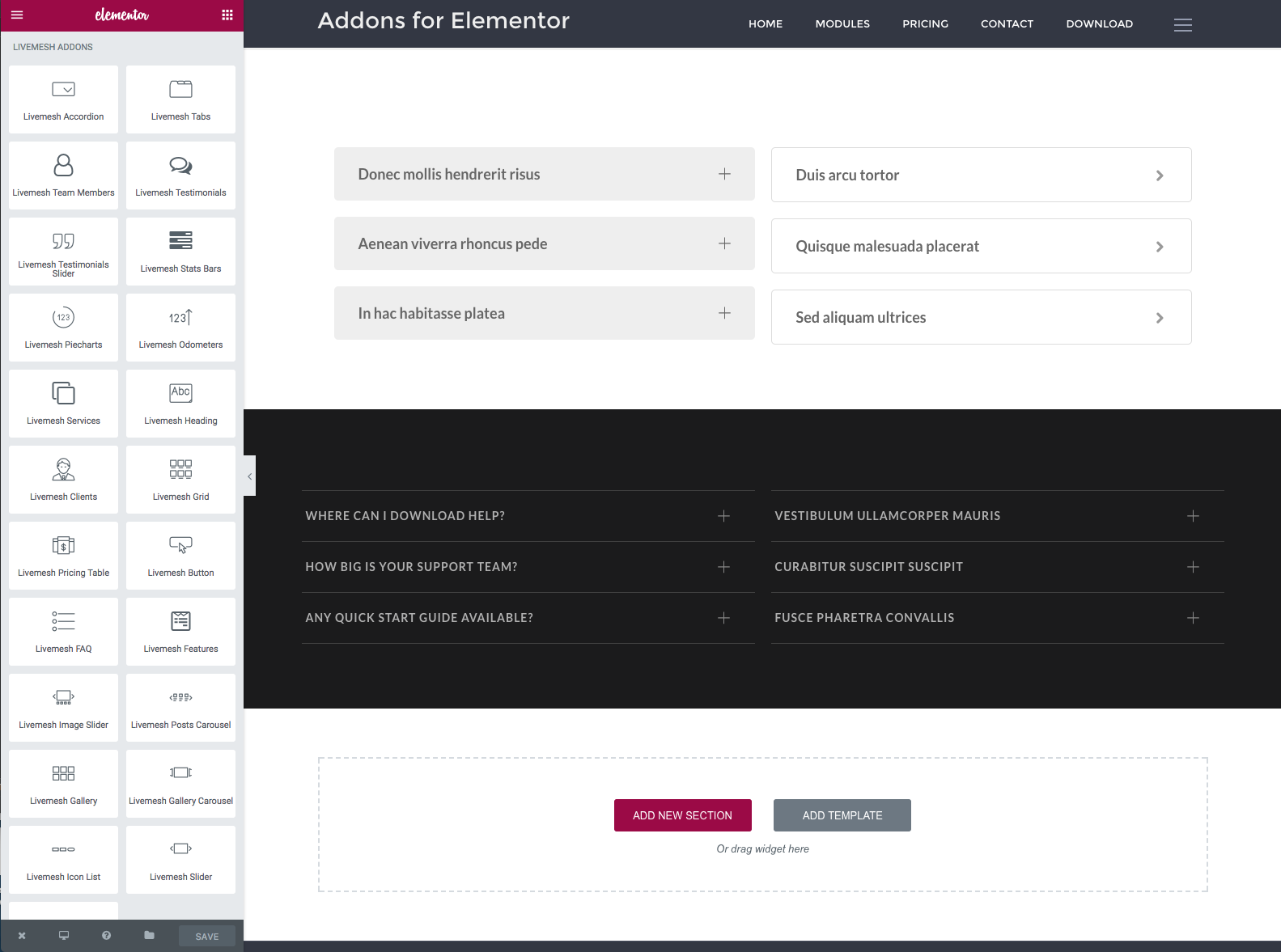
  4. Once the plugin is activated, all of the elements part of the plugin are available in frontend Elementor sidebar, grouped under 'Livemesh Addons'.

    Elementor Addons Add Element Window

    Once you are done with developing the site, for performance gains, you can selectively deactivate the unused elements in 'Elements' tab of Page Builder', 'livemesh-el-addons') ?> page. This will ensure that scripts and files relating to the deactivated elements do not load on your site.

  5. If you plan to build a portfolio site and plan to use Posts Grid element for the same, install and activate the optional plugin Portfolio Post Type. The portfolio examples of Posts Grid element is built using custom post type registered by this plugin.
  6. Optionally, if you have premium version of the plugin installed, you can import the sample data that replicates the demo site for you by importing the file sample-data.xml file located in the plugin directory. The import option is available under in WordPress admin.

Installing Recommended/Required Plugins Back to top

Below is a list of required/recommended plugins to install that will help you get the most out of this plugin. Although some of these plugins are optional, we recommend that you install these popular plugins if you plan to install the demo data and get most out of this plugin. The demo site and the sample data provided with the premium version of the plugin utilizes all of these plugins including the Portfolio Post type plugin.

These plugins are also listed in the Plugins tab of this help file under Elementor Addons → Documentation, and you can install the plugins directly from there.

  • Elementor is perhaps the most loved page builder tool for WordPress powering over 100,000+ sites. You can build any layout you can imagine with intuitive drag and drop builder with little or no programming knowledge.

    All of the elements part of Livemesh Addons for Elementor plugin were built using the API provided by the Elementor plugin and hence this plugin must be installed and activated on the site prior to using our plugin.

    All of the pages of our demo site for the plugin have been built using this page builder. You should install and activate this plugin prior to replicating the plugin demo site by importing the sample data provided.

    More about Elementor →

  • Portfolio Post Type is a free plugin that registers a custom post type for portfolio items. It also registers separate portfolio taxonomies for tags and categories. The Portfolio grid instances showcased on our demo site was built using custom post types registered by Portfolio Post Type plugin.

    More about Portfolio Post Type →


Installing Demo Data Back to top

If you have premium version of the plugin installed, you can install the demo data to replicate the plugin demo site to get a head start on building your site. Installing demo data reduces the learning curve associated with trying out the powerful elements part of this plugin.

The sample data imports the pages, posts and portfolio items part of the demo site. Once you are done with playing around the elements and feel comfortable creating/configuring them, you can delete the unwanted pages/posts that you may not need.

Prior to installing demo data, make sure you have recommended plugins installed as mentioned above in the Recommended Plugins section.

The demo site sample-data.xml file is located in the plugin directory created after unzipping the premium bundle. Once you have access to the sample data file, you can install the demo site by visiting and click Choose File. Upload the xml file and follow the steps to import. When the demo data is finished importing, you will have many pages that contain elements configured in them.

Working with plugin elements Back to top

  • If you are new to drag and drop page building functions of Elementor and need help, make sure you checkout the documentation of the Elementor before starting to use this plugin. The site has numerous articles and tutorials to help you get a head start on using the plugin.
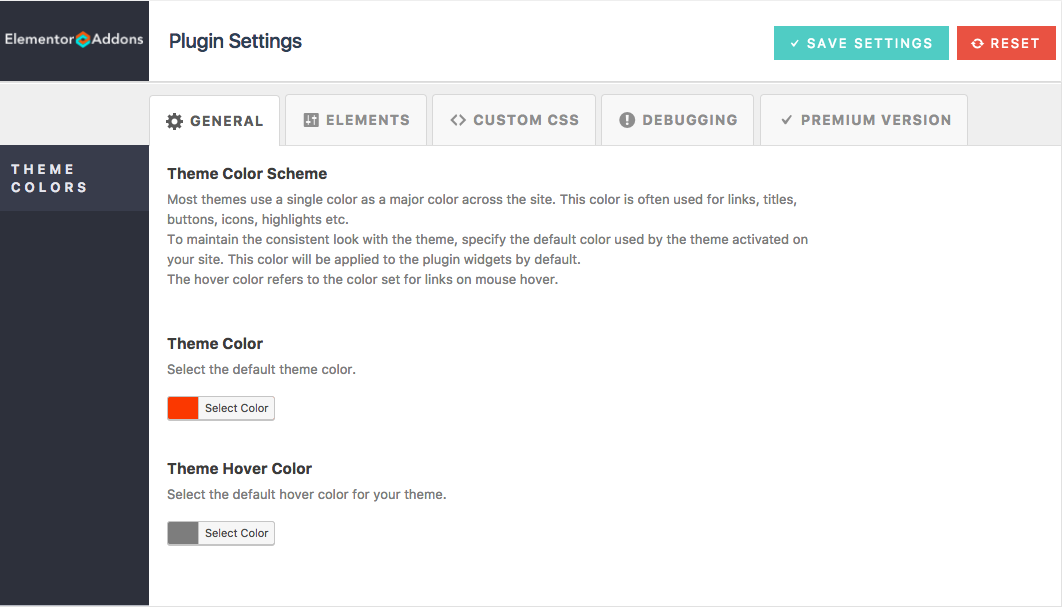
  • Once the Livemesh Addons for Elementor plugin is activated, you should see a menu item in WordPress admin with five sections - Settings, Elements, Custom CSS, Debugging and Premium Upgrade.

    Elementor Addons Settings

    The settings screen for the plugin is self-documenting with minimal options. Make sure you choose the theme color scheme in the 'General' tab to help ensure the plugin takes this as the default color for elements like buttons and links which have default color set.
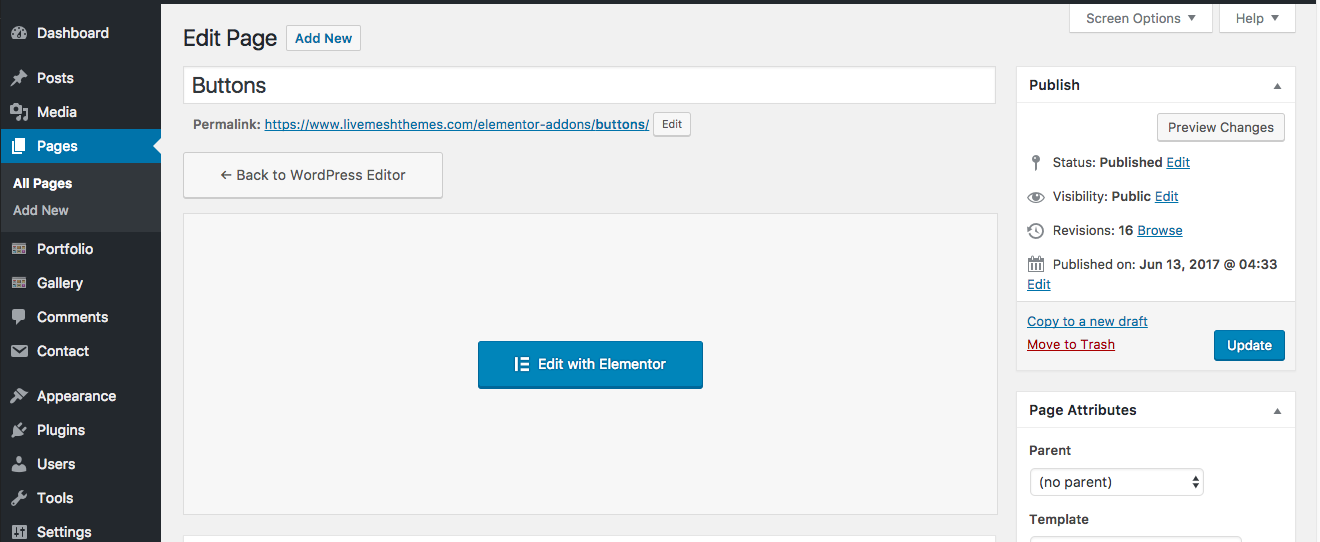
  • Once the Livemesh Addons for Elementor plugin is activated, all of the elements built by the plugin become available for drag and drop in the frontend Elementor page builder. In the Page edit window, click on the 'Edit with Elementor' button below the title field of the page edit window to invoke the frontend page builder controls of Elementor with the frontend page displayed on the right of the controls sidebar window.

    Elementor Page Builder Screen

    Clicking on the controls grid button at the top opens the page builder left sidebar with all of the elements grouped into multiple sections within the sidebar window.
    Elementor Page Builder Screen

  • The plugin elements are grouped under 'Livemesh Addons' section. Scroll down the page builder controls window to view this section containing all of the elements part of this plugin. Hover over an control listed in the section and drag it to the page on the right to add the element to the page.

    Page Builder Addons from Elementor

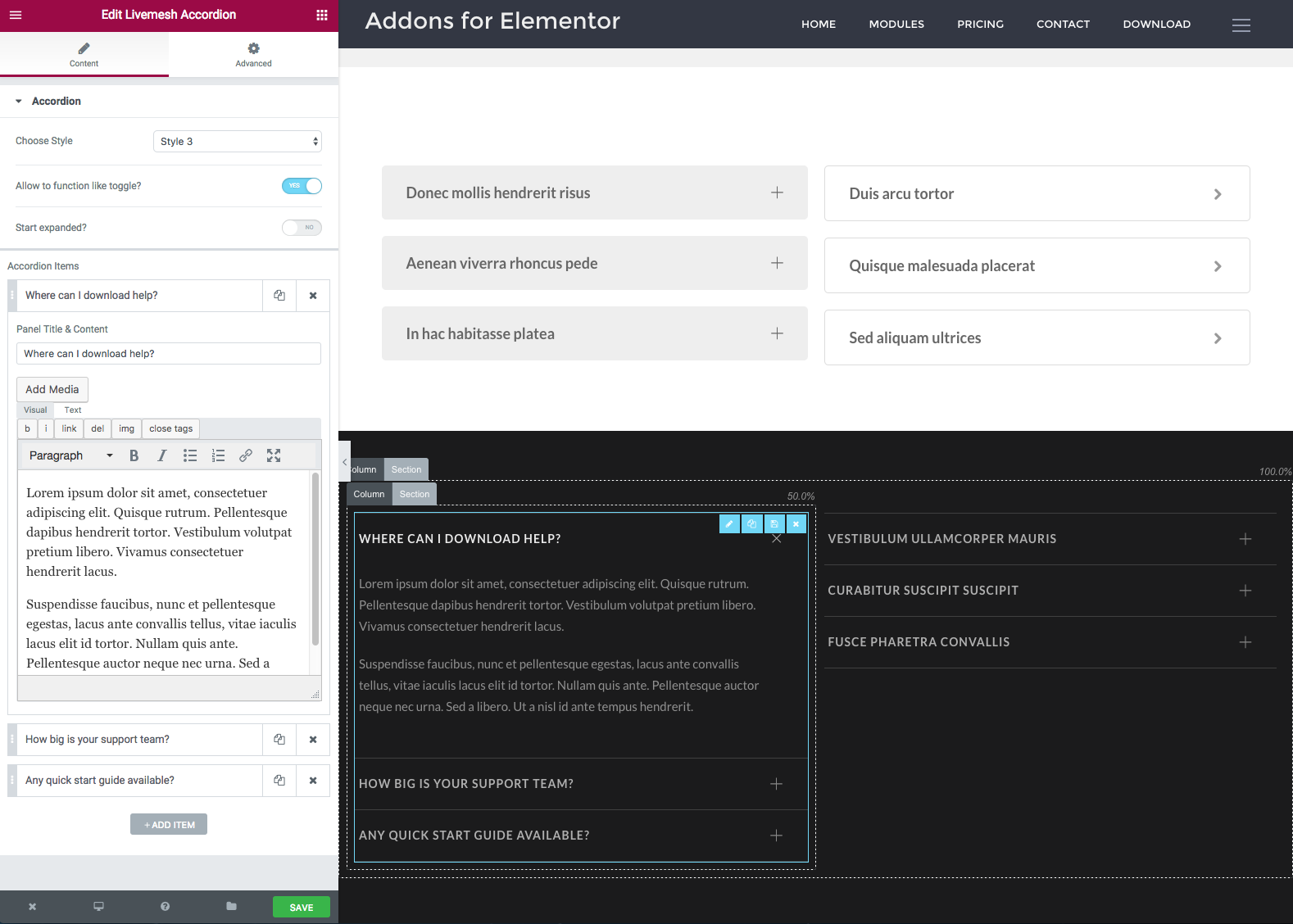
  • In the page displayed on the right, clicking the element added to the page brings up the edit/configure window in the left Elementor sidebar window. Most of the element options are self-documented but additional help is provided in the below sections for each of the Livemesh elements.

    Once the elements are added and data required for them is entered, you can save the changes by clicking on the 'Save' button at the bottom right of the Elementor sidebar.
    Elementor Addon Edit Window

  • Elementor being a frontend page builder, the changes you make in the edit window are rendered on the page immediately after you edit and changes values of the individual fields in the element edit window. After you hit the Save button in the Elementor sidebar,the changes are saved permanently to the page.

    Elementor Addon Rendered

  • Once you are done with building the page by adding elements to it and saving the changes, click on the cross/close button on the bottom left of the Elementor sidebar window to either return to the dashboard or to open the page without the page builder controls.

How to customize output generated by addons Back to top

The strength of this plugin over many others is that this plugin lets you customize almost any piece of HTML generated by an addon part of the plugin. You can move around or modify the output elements to suit your needs - change HTML tags, change sequence of information (e.g., place image at the bottom of the post in a grid), add new CSS classes of your own, add branding material, delete unneeded output element (e.g. remove post meta information), modify information (e.g., truncate description or excerpt generated) etc. with the help of templates and filters provided by the plugin.

Following are the two ways to customize the output of an addon part of the plugin.

  • Filters are hooks that are provided at almost every customization opportunity that presents itself as the addon renders the widgets by parsing the settings input by the user in the Elementor panel. About 200+ filters have been provided to help users customize almost any information output by the addons of this plugin.

    To locate the filters, the users are encouraged to have a look at the PHP code located in the render() function of the respective addon file located in includes/widgets/ folder.

    More about Filters - a guide for non-developers →

  • Templates let you modify the HTML generated by an addon by placing an appropriately named PHP file in a folder named 'elementor-addons' in your child theme (or parent theme).

    Following are the names of the files that plugin looks for to customize the respective addon rendering - clients.php, carousel.php, heading.php, odometers.php, piecharts.php, posts-grid.php, posts-carousel.php, pricing-table.php, services.php, stats-bars.php, team-members.php, testimonials.php, testimonials-slider.php, accordion.php, button.php, faq.php, features.php, gallery.php, gallery-carousel.php, icon-list.php, image-slider.php, posts-block.php, services-carousel.php, slider.php, tabs.php.

    Once a particular template file is found in the theme folder, the corresponding addon rendering code is replaced with that in the template PHP file. The template files are provided with $settings variable to help read the addon settings and then display the output. The current output generated by the plugin addon can be seen in the render() function of the addons PHP file located in includes/widgets/ folder. In most cases, it is recommended to copy over the rendering code from the render() function to the template file and modify the same to achieve the desired customization. A basic knowledge of PHP and HTML is all that is required to customize an addon.


The below sections provide help on each of the elements/addons built as part of Livemesh Addons for Elementor plugin.

Heading Element Back to top

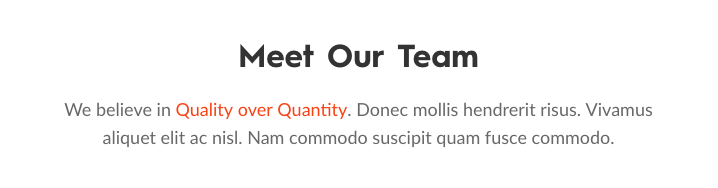
Heading Element Rendered

The heading element is perhaps the most frequently used element on a page since it displays a heading at the top of a section.

It comes in three styles – Style 1, Style 2 and Style 3 which allow variations of headings displayed in various sections.

The heading consists of the main heading text which is renders as one of the HTML heading tags on the frontend. Additionally, a short text is displayed below the heading and some of the heading styles allow you to input a subtitle which is usually displayed on top of the main heading title.

You can choose to align the heading left, right or center with center being the default alignment.

The premium version of the plugin allows selection of a custom font for the heading title. You may choose one of 500+ custom fonts hosted in the Google Fonts library. By default, the heading font used by the theme is used for main heading title.
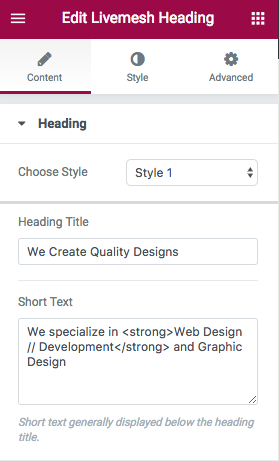
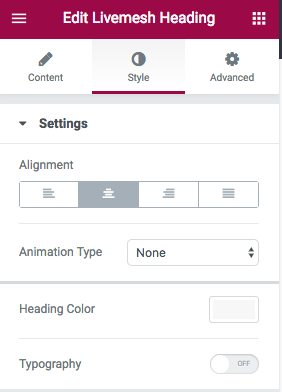
Heading Element Edit Window

Heading Element Edit Window


Services Element Back to top

Services Element

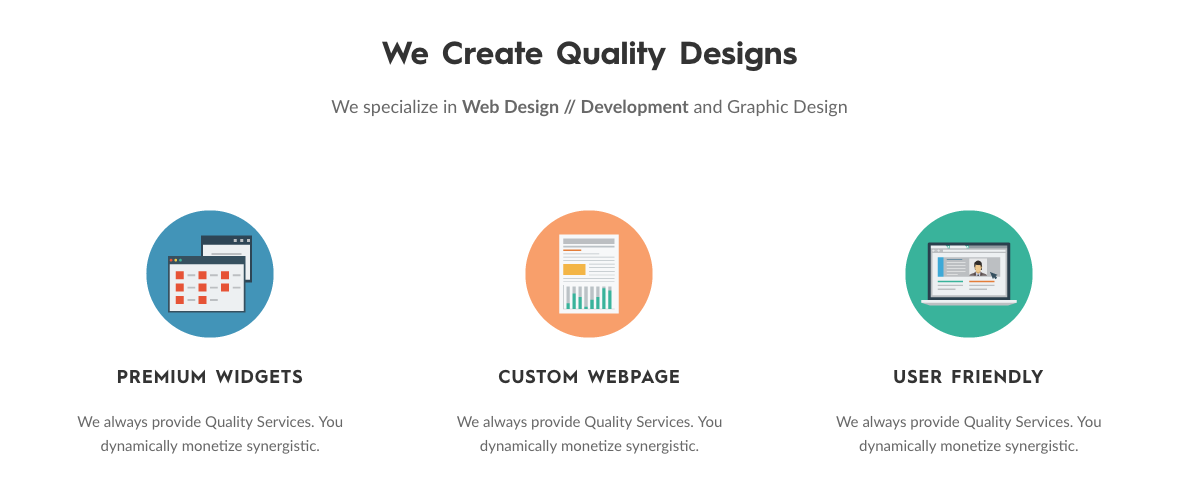
Many agencies, freelancers, corporates, products/apps require capturing the services provided by the agency or the features of a product. The services element is designed to help users capture these services or features in a multi-column grid.

The element supports about 3 different styles (with 2 additional styles in premium version of the plugin) and each of these styles can be customized further by choosing the type of icon desired to represent the service – a font icon or an custom image icon. While the choice of font icons is huge in number and perhaps sufficient for most common services, the icon images can help present the unique nature of the services offered.

Each of the service requires you to input a title for the service/feature and a short description of the service offered or the product feature. Additionally, each service allows you to enter a font icon or an icon image file to represent that service.

The premium version of the plugin allows you specify a custom font size, font color and and hover color for the font icon along with providing two additional styles of services/features.
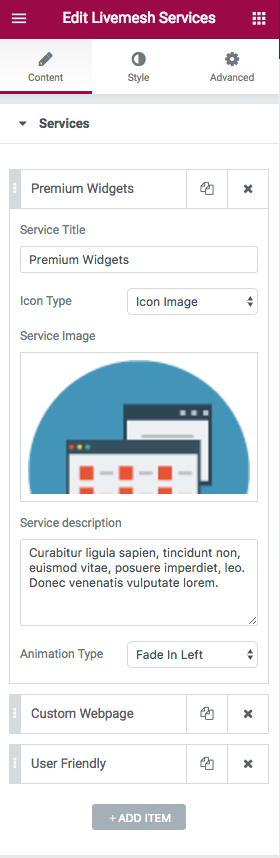
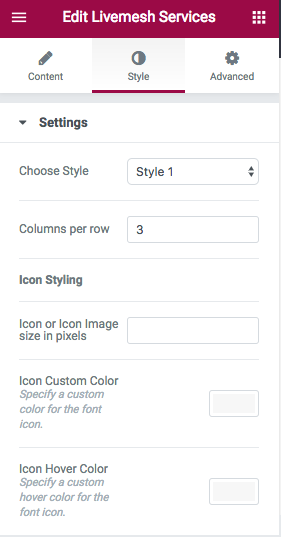
Services Element Edit Window

Services Element Edit Window

Services element supports the following options –
  • Columns per row – Number of services to display per row of services.
  • Icon Custom Size – If the icon chosen for services is icon font, you can specify a custom size for the font icon in pixels.
  • Icon Custom Color – Specify a custom color for the font icon.
  • Icon Custom Hover Color – Specify a custom hover color for the font icon.

Team Members Back to top

Team Members Element

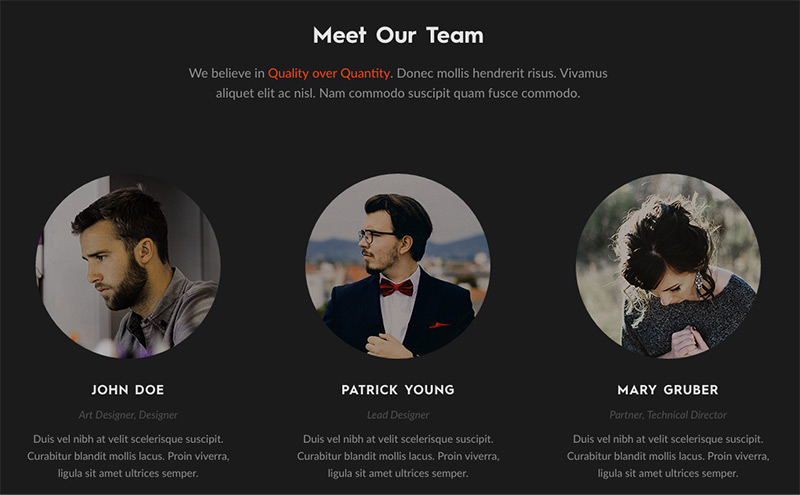
This element provides an easy way to capture the team members of your organization or an agency. The details captured include team member name, position, a short description and the email plus social profile of the individual team members.

Two different styles are provided with more styles planned in the premium version of the plugin. Most of the styles display the team members in a multi-column grid. The option to specify the number of columns is provided that helps to control the number of team members displayed per row of the team members.
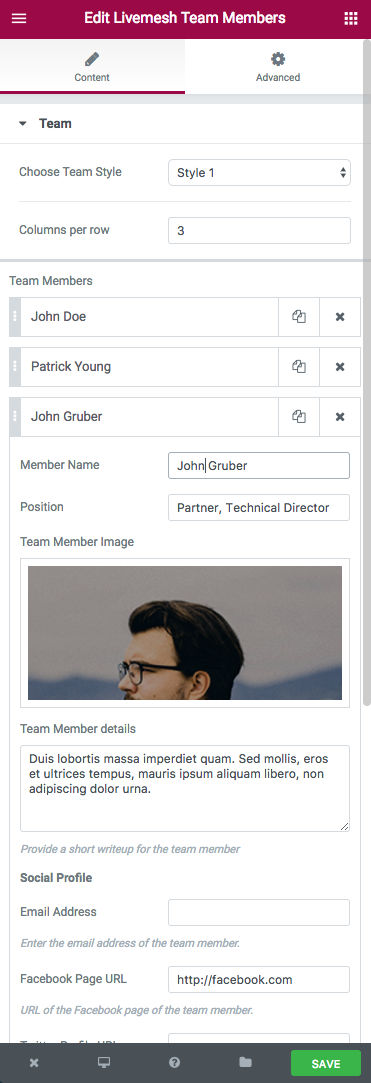
Team Members Element Edit Window


Statistics Elements Back to top

Statistics Elements

The plugin features a number of elements that help display statistical information in the form of odometers, piecharts and stats bars.

Most of these addons are designed to animate the display of the statistical information or numbers when the users scroll down to the section containing the widget.

Odometers
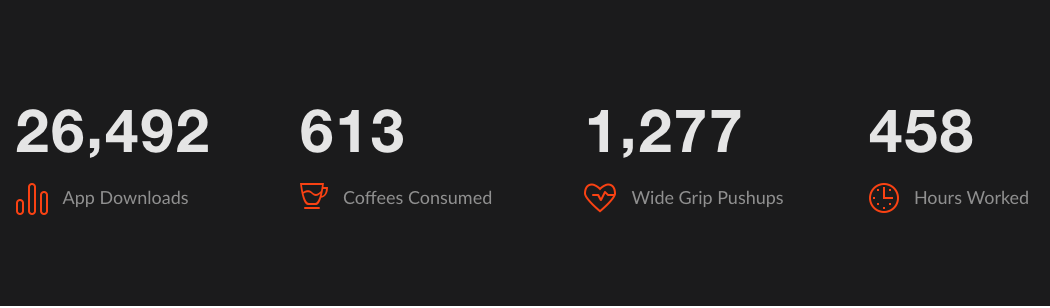
Odometer Element

This element displays one or more animated odometer statistics in a multi-column grid. This number statistic requires a start and an end value with a title and icon providing the information about what the number represents – like a download number or number of products sold or customers gained.

The element animates from the start value to the end value when the user scrolls down to the section. You can control the number of such odometers displayed per row.
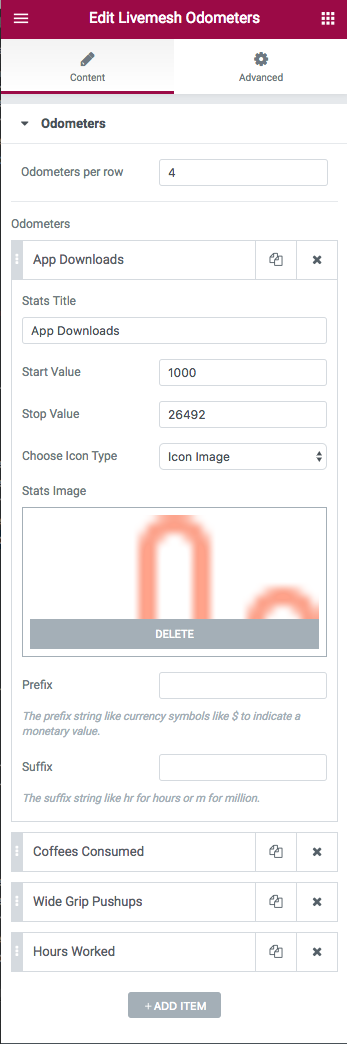
Odometer Edit Window

Stats Bars

Stats Bar Piechart Elements

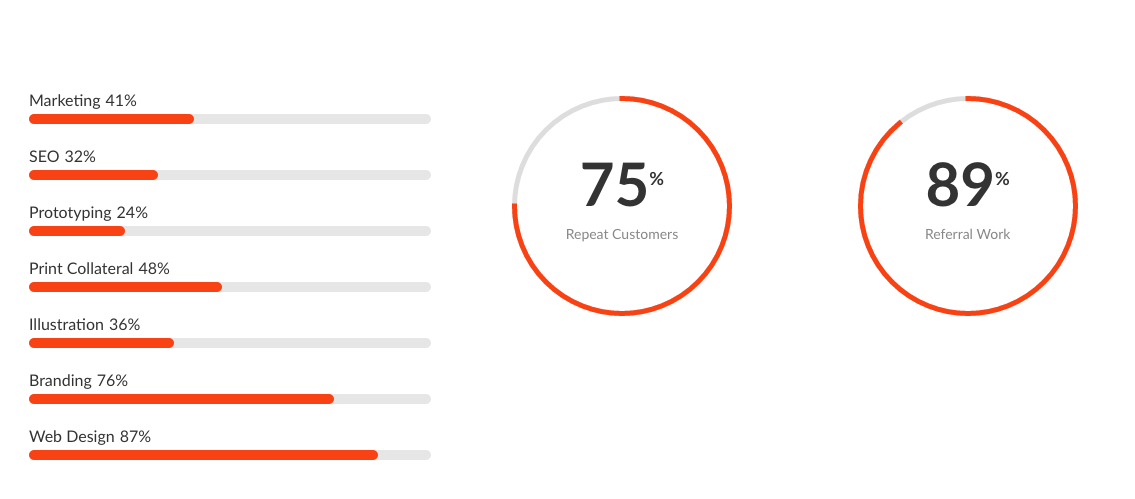
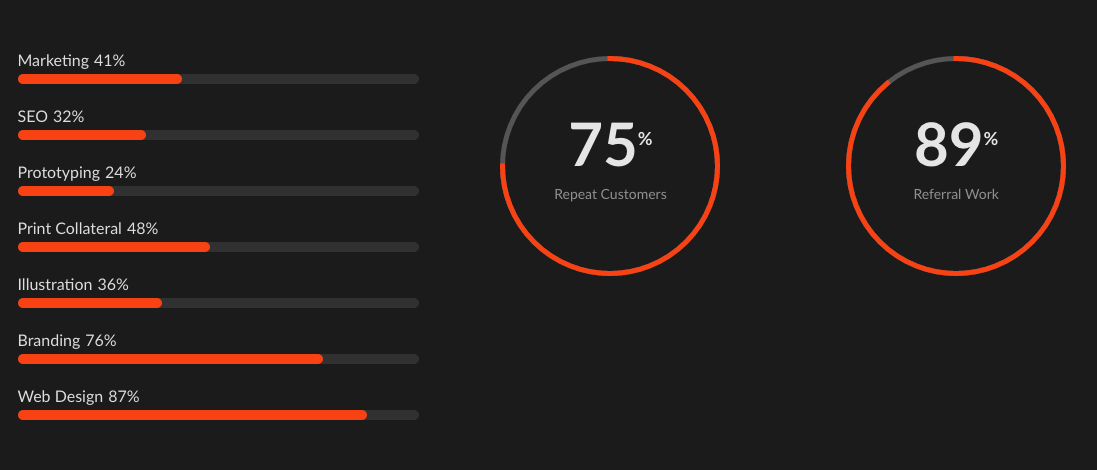
Stats Bars capture percentage statistics like coverage area, skills gained, survey findings, usage statistics etc. that typically require bar charts to represent them. Each statistical item requires a percentage value, a title describing the number. The user can choose to display the bar charts in multiple or single color with the help of color choice available with each value input.

The element animates from the zero to the percentage value set for the item when the user scrolls down to the section containing the widget. The bars are placed one below the other horizontally.
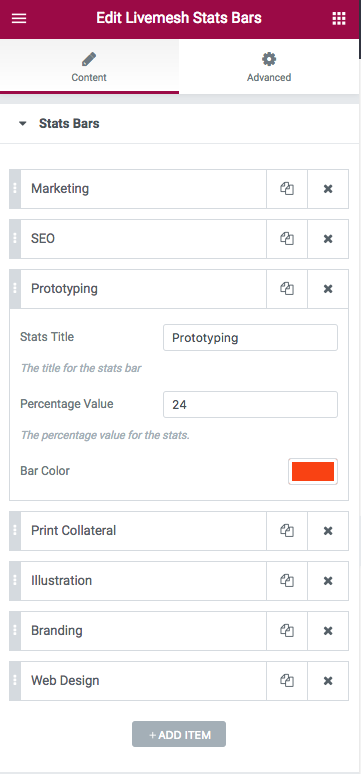
Stats Bar Element Edit Window

Piecharts

Piecharts provide an alternative way to display percentage stats. When the users scrolls down and the chart becomes visible, the element animates from zero to percentage value provided for the statistic. A bar of user chosen color moves along a track to display the percentage information. An option to specify the number of charts displayed per row is provided.
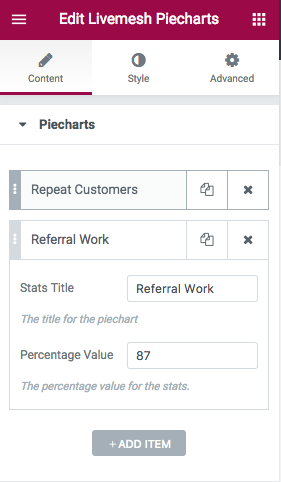
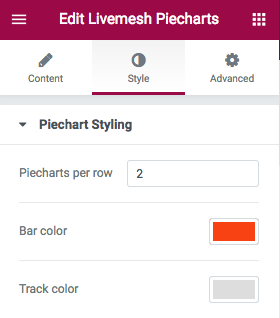
Piechart Element Edit Window

Piechart Element Edit Window


Testimonials Elements Back to top

Testimonials Element

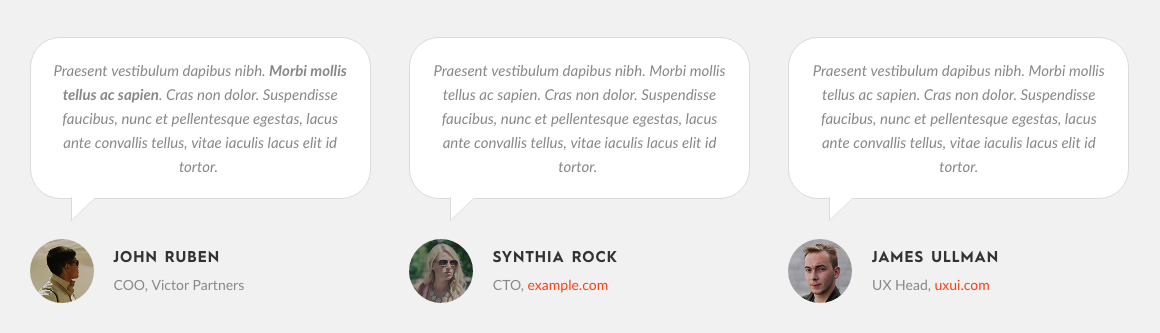
The plugin features two addon elements for capturing testimonials received for your product or business or services. Most agencies, corporates, small businesses, freelancers and products/apps require testimonials to displayed prominently on the site to help convert visitors to customers. The two elements provided are elegantly designed to achieve greater conversion rate.

The testimonials information include details about the person/company endorsing the product/service; details like name, company, website of this person/organization along with an image representing this person/entity.

Testimonials

The regular testimonials widget displays multiple testimonials in a row with the user having the option to specify the number of items per row. This is useful if you need a large number of testimonials to be visible instantly when the user scrolls down to view the testimonials section.
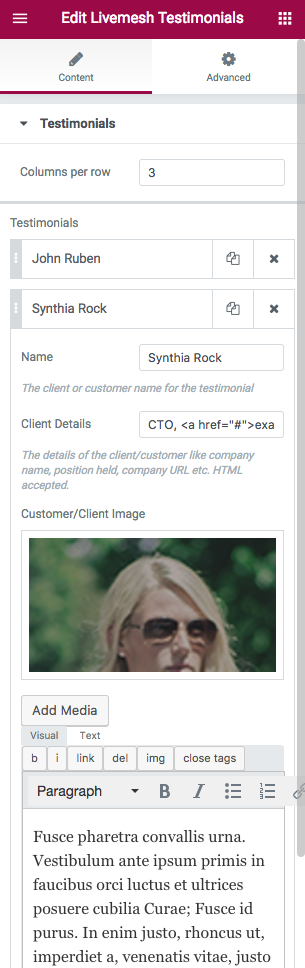
Testimonials Element Edit Window

Testimonials Slider

Testimonials Slider Element

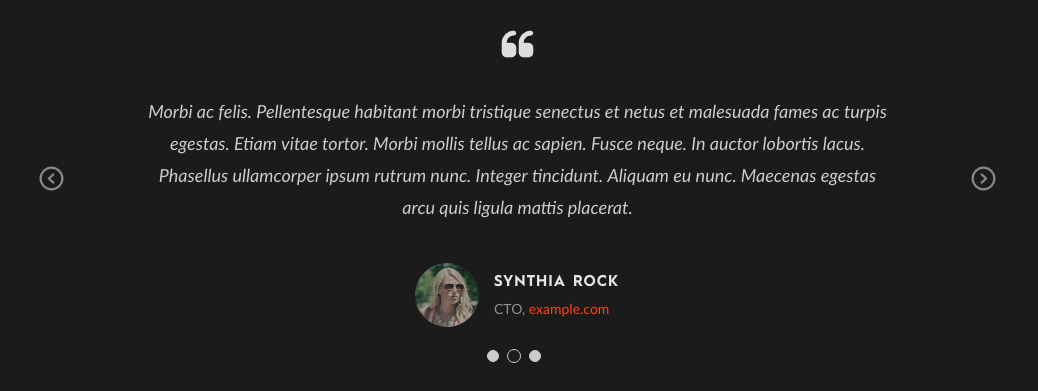
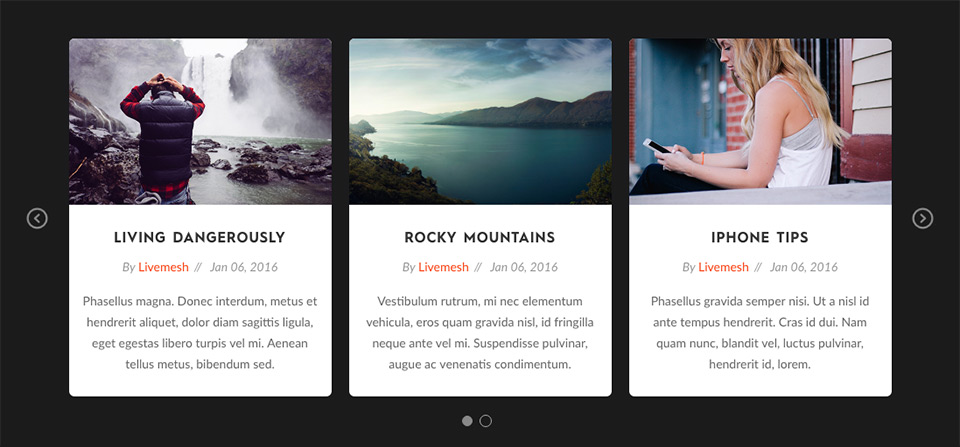
The testimonials slider widget is useful for display of endorsements/recommendations with large amount of text for each testimonial. The slider displays the testimonials as a slideshow with multiple element options provided to control/customize this slideshow – options like speed of switching, speed of animation, whether to pause the slideshow on hover, controls needed for manual navigation by the user etc. The slider is completely responsive and touch swipe controls available for easy navigation on smartphones/tablets.
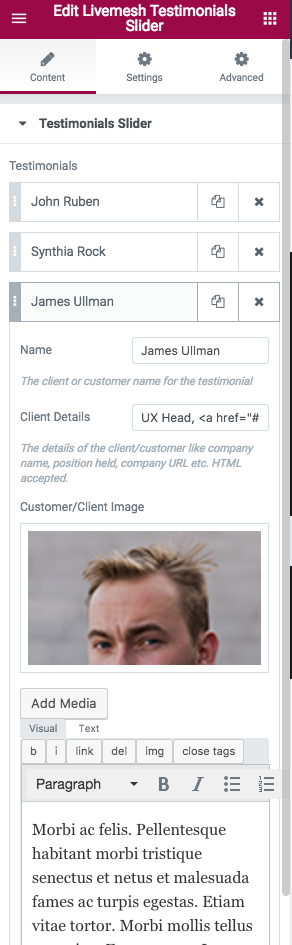
Testimonials Slider Edit Window

The testimonials slider provides quite a few options to customize the behavior of the slider. Options include slideshow speed, animation speed, slider navigation contols etc.
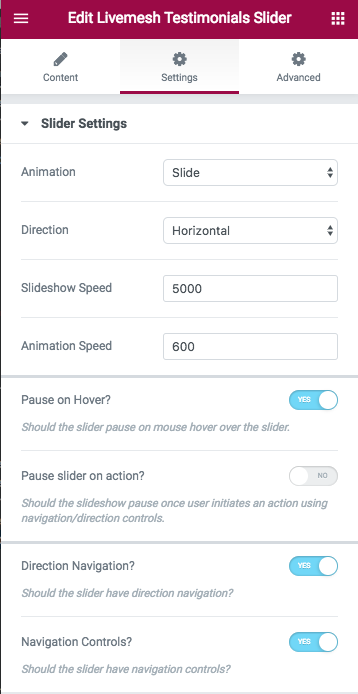
Testimonials Slider Settings


Post Carousel Element

The responsive carousel helps display posts or any custom post types like your portfolio entries with controls available for easy navigation of the items displayed. The element features a Posts Query window to help choose posts or custom posts to display. This powerful tool has number of fields to control what gets displayed and in what order with an additional field available to provide query arguments explained in the codex page.

Post Carousel Build Query Tool

The Posts Query tab has the following options for filtering posts –

  1. Post Types – Select the custom post type that you need the element for. By default “All” is selected.
  2. Taxonomies – If you need to filter the posts by specific category or taxonomy terms, you can choose one or more of the taxonomy terms from this dropdown.
  3. Post In – This field enabled you to specify the post ids of the posts or custom post types you would like to include in your widget. Provide a comma separated list of Post IDs to display in the carousel.
  4. Posts Per Page – Set the number of posts you wish you display in the widget. If the element does not support pagination, the number of posts chosen by the limited by the number specified here. This is also the number of posts to display per page when the element supports pagination as is the case with Posts Grid widget. Choosing the value zero makes the widget all the selected posts.
  5. Order By – Lets you decide on how you want the posts to be ordered – by Published Date, by Post ID, by Menu Order etc. and whether you want the ordering by Ascending or Descending.
  6. Order – Can be ascending or descending sort order applied to the Order By paramter above.

Post Carousel Edit Window

The posts carousel has numerous other options to control the display of posts or custom post types. Some of these are –

  • Choose Taxonomy to display info – When the post info is displayed, the specific taxonomy you want the info to use. For example, choosing category will display category information for a posts while choosing ‘post_tag’ would display the tag information for posts.
  • Link images to Posts – Make the images link to the posts or custom post types they represent.
  • Display post titles – Checking this box will display post title below the featured image for the posts or custom post type.
  • Display post excerpt/summary – Display summary information for the posts below the featured image and post title.
  • Post Meta – Display post meta information like published date, author name, taxonomy information below the posts. The specific taxonomy chosen above under “Choose Taxonomy to display info” will be used for display taxonomy information.

Post Carousel Element Settings

Post Carousel Element Settings

Carousel Settings – This section has options that control how the carousel is displayed. Options include autoplay speed, gutter value between post items in various resolutions, navigation controls for carousel, number of columns or items to display before making the user to scroll for additional items etc.
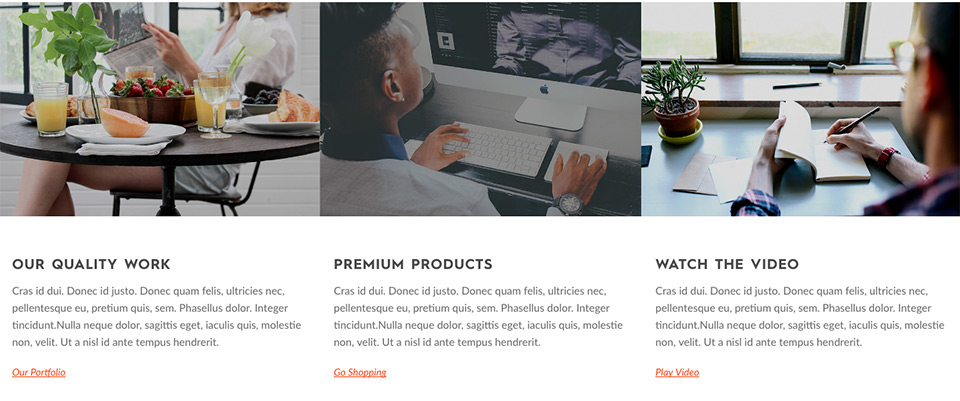
  • Prev/Next Arrows – Display navigation for the carousel.
  • Show dot indicators for navigation – Display control navigation or pagination controls for the carousel.
  • Autoplay – Display carousel as a slideshow.
  • Autoplay speed in ms – The time between display of each page of images when Autoplay option is enabled.
  • Autoplay animation speed in ms – The time taken for animation that moves the carousel to next or previous page of items.
  • Pause on mouse hover – Pause the slideshow if the user has mouse hovered over the carousel contents.
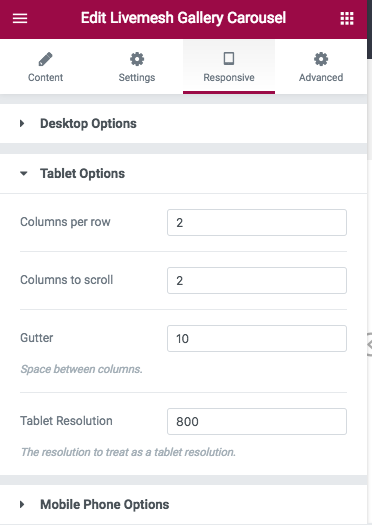
  • Columns per row – Number of gallery items visible at any given point of time without scrolling.You can control the number of items visible at various resolutions like those of tablet/smartphone by providing appropriate values in the 'Responsive' tab.
  • Columns to scroll – With each scroll action – using the prev/next arrows or the dotted navigation, specify the number of items to scroll for each invocation of the navigation controls. You can control the number of items to scroll at various resolutions like those of tablet/smartphone by providing appropriate values in the 'Responsive' tab.
  • Gutter – The spacing in pixels between images/videos in the carousel. You can control the spacing/gutter at various resolutions like those of tablet/smartphone by providing appropriate values in the 'Responsive' tab.

Generic Carousel Element

Livemesh Carousel is a generic carousel of custom HTML content of your choice. Possibilities are endless – image carousels with textual content describing the images, video carousels, event carousels with link to the events, a carousel of team of volunteers, a collection of books sold on Amazon etc.
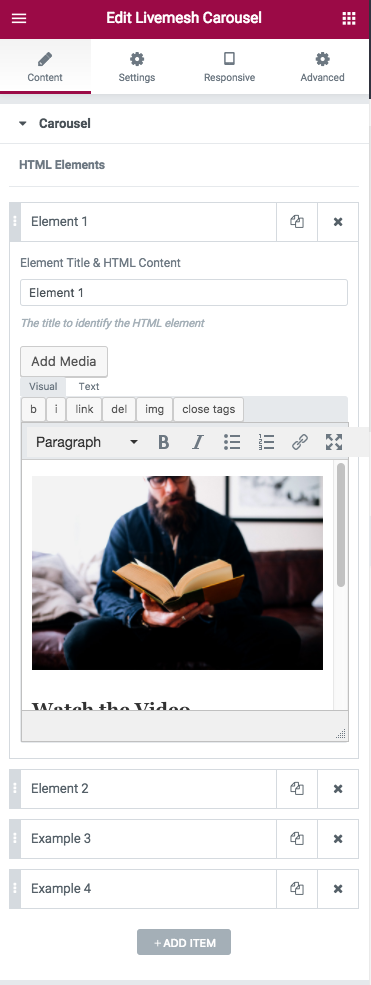
Generic Carousel Element Edit Window

If you need a carousel of custom content HTML of your choice, this element helps achieve the same. For the HTML content, you will need to provide your own custom CSS under Settings for the carousel. While posts carousel helps you display carousel items derived from posts or custom post types, this element lets you display any well-formed HTML content as items in a carousel. You may use the WordPress visual editor to construct the required content.
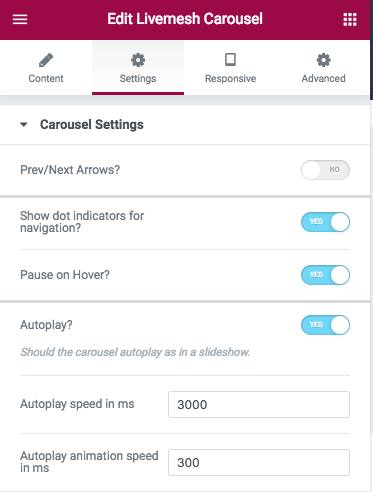
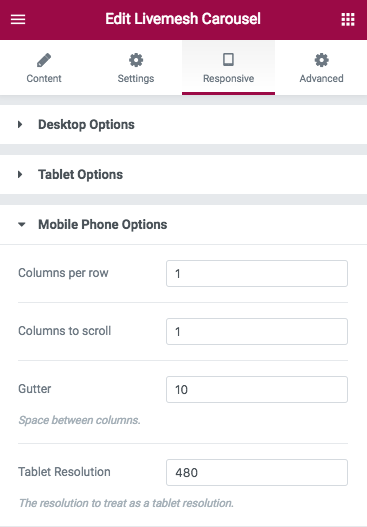
Generic Carousel Settings Window

Generic Carousel Settings Window

The section ‘Carousel Settings’ has options that control how the carousel is displayed. Options include autoplay speed, gutter value between post items in various resolutions, navigation controls for carousel, number of columns or items to display before making the user to scroll for additional items etc. The carousel settings are explained in the help section above for Posts Carousel.


Posts Grid Back to top

Posts Grid Element

Perhaps the most popular and most important of all addons part of this plugin, Posts Grid helps you build a multi-column grid of posts or custom post types. The posts displayed are filterable by taxonomy terms.
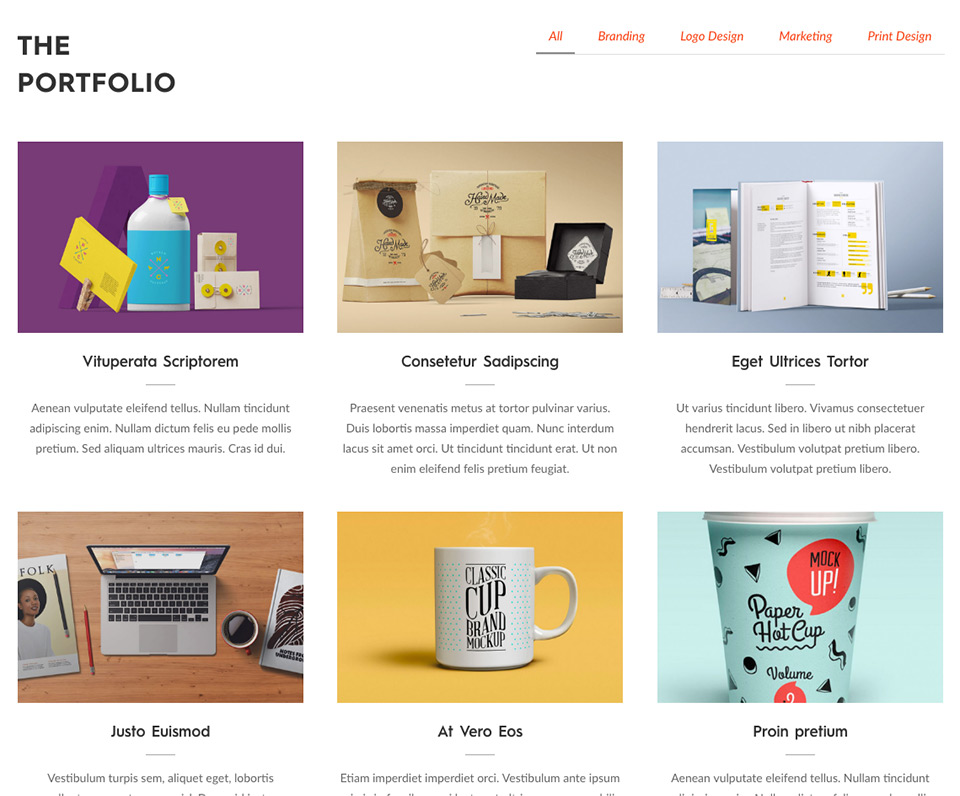
Posts Grid Element

Using the Grid widget, you can construct a portfolio of your work/services/products. We recommend you use the popular plugin – https://wordpress.org/plugins/portfolio-post-type/ for building a collection of portfolio entries. Once the portfolio entries are in place, make sure you select Portfolio Post type under Post Type entry in Build Tools window as explained below.
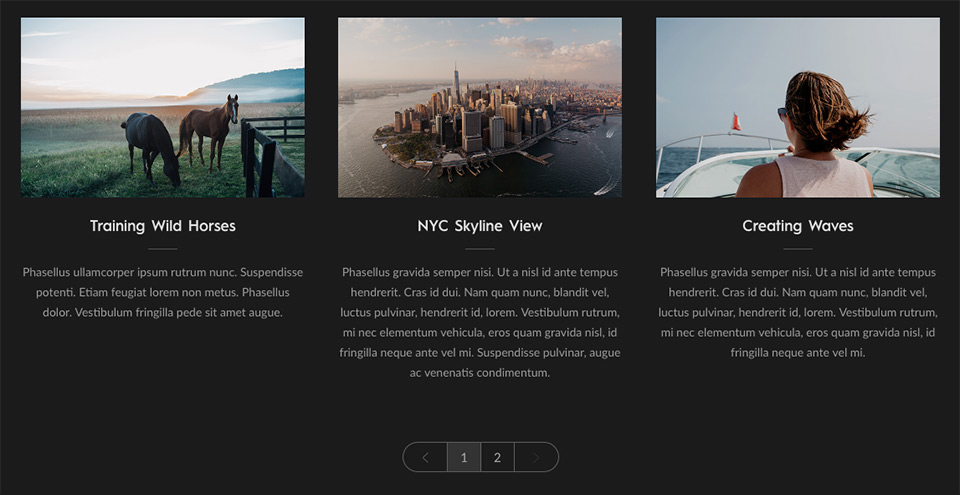
Posts Grid Pagination

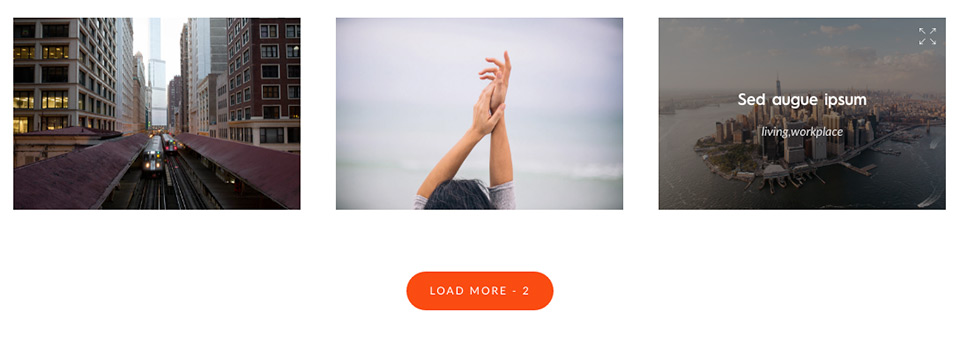
The premium version of the plugin has support for pagination, lazy load with load more button and lightbox option for images. The additional posts are loaded via AJAX when the user navigates through the pages populated or when the user hits the Load More button.
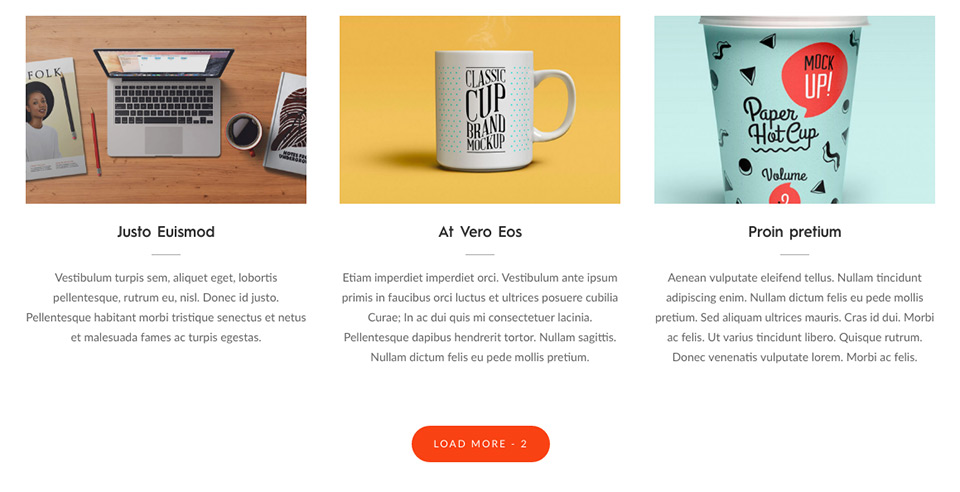
Posts Grid AJAX Load More

The element features a Posts Query window to help choose posts or custom posts to display. This powerful tool has number of fields to control what gets displayed and in what order with an additional field available to provide query arguments explained in the codex page.

Build Post Query Tool

The Posts Query tab has the following options for filtering posts –

  1. Post Types – Select the custom post type that you need the element for. By default “All” is selected.
  2. Taxonomies – If you need to filter the posts by specific category or taxonomy terms, you can choose one or more of the taxonomy terms from this dropdown.
  3. Post In – This field enabled you to specify the post ids of the posts or custom post types you would like to include in your widget. Provide a comma separated list of Post IDs to display in the carousel.
  4. Posts Per Page – Set the number of posts you wish you display in the widget. If the element does not support pagination, the number of posts chosen by the limited by the number specified here. This is also the number of posts to display per page when the element supports pagination as is the case with Posts Grid widget. Choosing the value zero makes the widget all the selected posts.
  5. Order By – Lets you decide on how you want the posts to be ordered – by Published Date, by Post ID, by Menu Order etc. and whether you want the ordering by Ascending or Descending.
  6. Order – Can be ascending or descending sort order applied to the Order By paramter above.

Posts Grid Edit Window

Posts Grid Edit Window

Posts Grid Edit Window

The grid element has numerous other options to control the display of posts or custom post types. Some of these are –
  • Choose Taxonomy to display and filter on – The terms of this taxonomy chosen will be used for filtering the posts if ‘Filterable’ option is checked. When the post info is displayed, the specific taxonomy you want the info to use. For example, choosing category will make the posts filterable on category while choosing ‘post_tag’ would make the posts filterable by post tags instead of category.
  • Choose a Layout for the grid – You may choose Masonry or Fit Rows layout for the grid.
  • Pagination options (Pro!)– Choose pagination type or choose None if no pagination is desired. If you choose Paged or Load More option, make sure the ‘Post per page’ field value is set in the Build Query window to control number of posts to display per page.
    – If the Pagination option chosen is Paged, the grid displays a paginated grid of entries with links to various pages displayed at the bottom of the grid, provided sufficient number of entries of this post type has been created by the user and the Posts Per Page value is set to a lower value than the number of entries created.
    – If the Pagination option chosen is Load More, the grid displays a Load More button below the grid of posts/portfolio with an option count of remaining posts/post types yet to loaded. When the users hits the Load More button, a number of posts/portfolio entries equal to ‘Posts per Page’ value will be lazy loaded into the element via AJAX. Upon loading all of the remaining entries, the Load More button is no longer shown.
    Do check the option ‘Display count of posts yet to be loaded with the Load More button’ to display the remaining post count with the Load More button.
  • Link images to Posts/Portfolio – Make the post images link to the posts or custom post types they represent.
  • Enable Lightbox Gallery (Pro!)– If checked, the images part of the grid entries will have a lightbox option enabled to display a gallery of post images in a popup display.
  • Display post/project titles – Checking this box will display post/portfolio entry title below the featured image for the posts or custom post type.
  • Display post/portfolio excerpt/summary – Display summary information for the posts/portfolio items below the featured image and post title.
  • Post Meta – Display post meta information like published date, author name, taxonomy information below the posts. The specific taxonomy chosen above under “Choose Taxonomy to display and filter on” will be used for display taxonomy information.
  • Columns per row – The number of posts/portfolio items to display in each row on desktop.
  • Gutter options – The spacing in pixels between each entry in the grid. If you need a packed layout, specify zero here. You can control the gutter/spacing at various resolutions like those of tablet/smartphone by providing appropriate values in the 'Responsive' tab.

Clients Back to top

Clients Element Edit Window

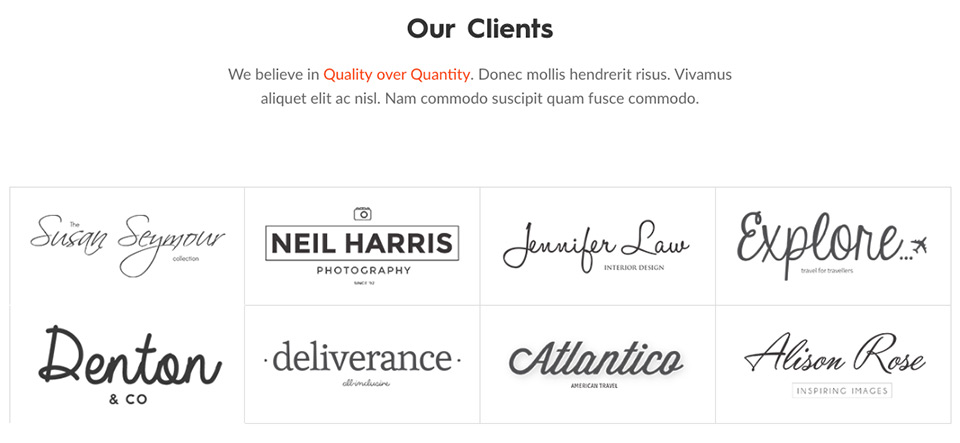
Whether you are freelancer or run a small business, agency or represent a big corporate house, you have a list of clients that you have worked with. This element lets you create a list of these clients with banner images representing these clients.
Clients Element Edit Window

Clients Element Edit Window

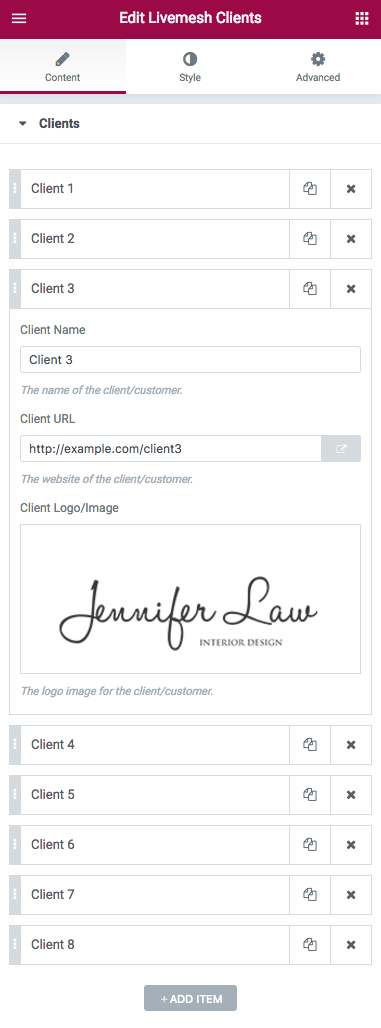
For each of the client, you provide a client name, a banner image for the client and a URL for their website. The client name is shown on user hovering over the banner image and title text is optionally a link pointing to the website of the client, if that link is provided by the user.

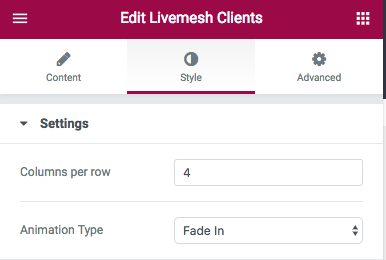
The collection of clients will be displayed in a multi-column grid. The ‘Columns per Row’ option lets you control the number of client entries per row of clients displayed.

Pricing Table Back to top

Pricing Plan Element

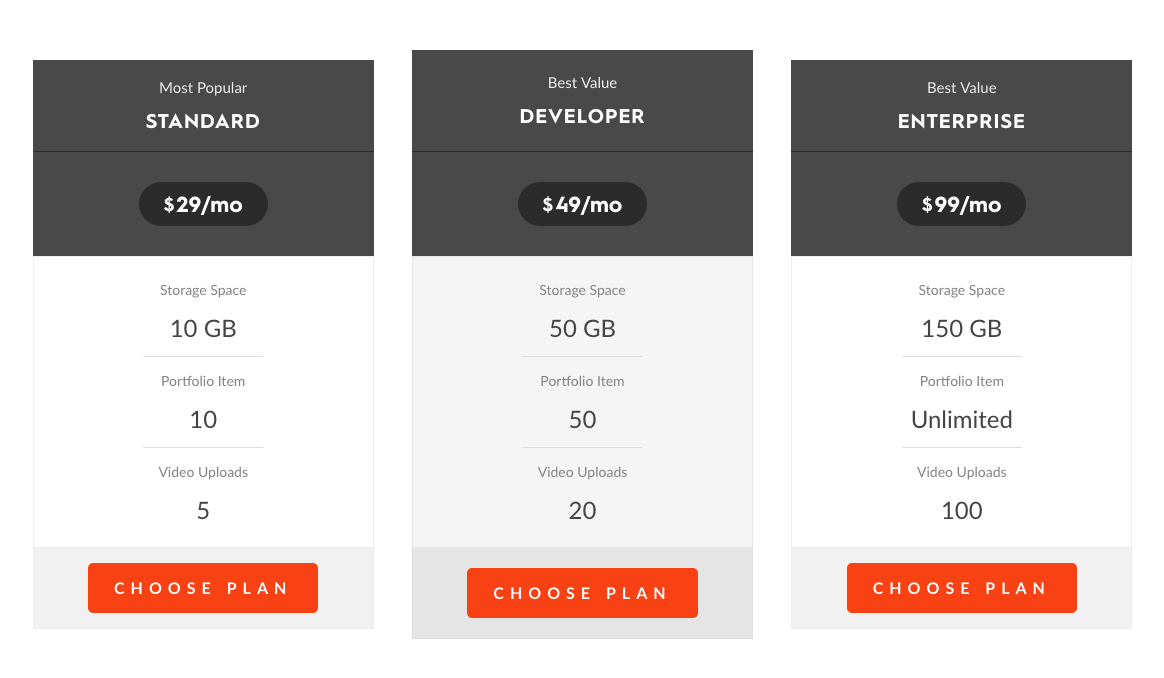
The pricing plans offered by your business can be captured with pricing plan widget. The pricing plans are displayed in a multi-column grid.
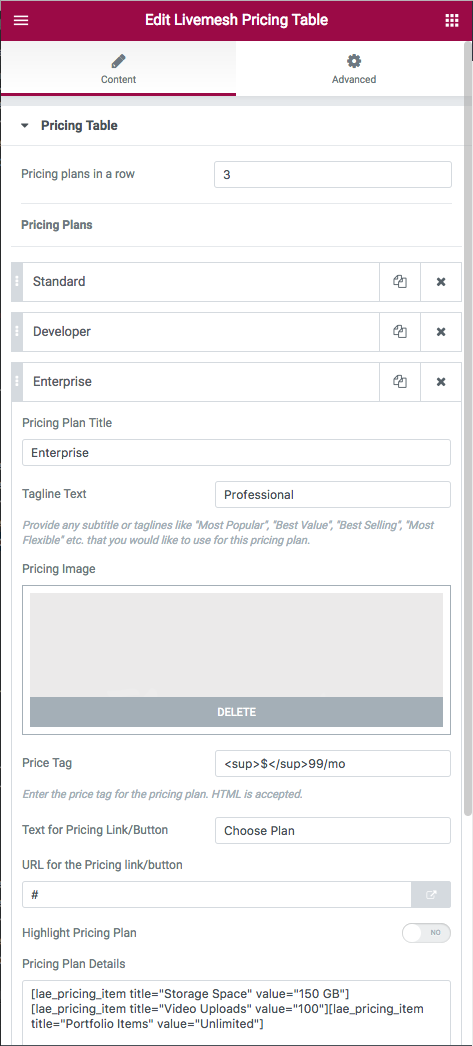
Pricing Plan Edit Window

For each of the pricing plan, provide the following information –
  • Pricing Plan Title – The title for the pricing plan like Standard, Premium, Developer etc.
  • Tagline Text – Provide any subtitle or taglines like “Most Popular”, “Best Value”, “Best Selling”, “Most Flexible” etc. that you would like to use for this pricing plan. Usually displayed above the pricing plan title.
  • Image – Optional image or icon to represent the pricing plan.
  • Price Tag – This is where you specify the actual price tag for the plan along with the currency. HTML is allowed.
  • Text for Pricing Link/Button – Specify the text for the link or a button displayed at the bottom of the pricing plan. This link takes the user to the purchase page.
  • URL for the Pricing link/button – Provide the target URL for the link or the button shown for this pricing plan. This link takes the user to the purchase page. Check the option ‘Open Button URL in a new window’ if you need the link to open the target page in a new tab or window of the browser.
  • Highlight Pricing Plan – Specify if you want to highlight the pricing plan. This would be most likely plan your user would choose to sign up for.
  • Pricing Columns per row – The number of pricing plans to display per row of plans. Most businesses choose to fit in all of their plans into a single row.

Buttons Back to top

Buttons Element

Buttons Element

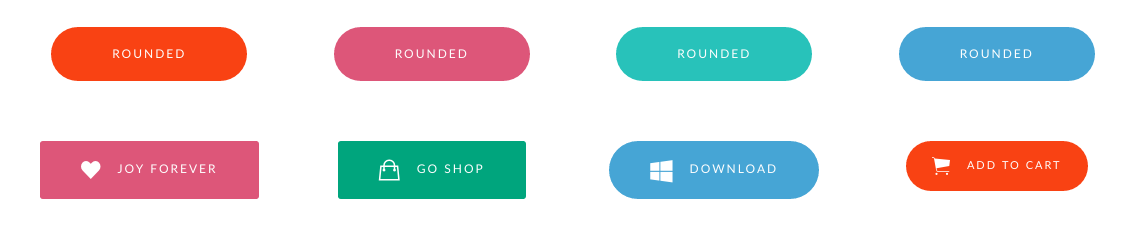
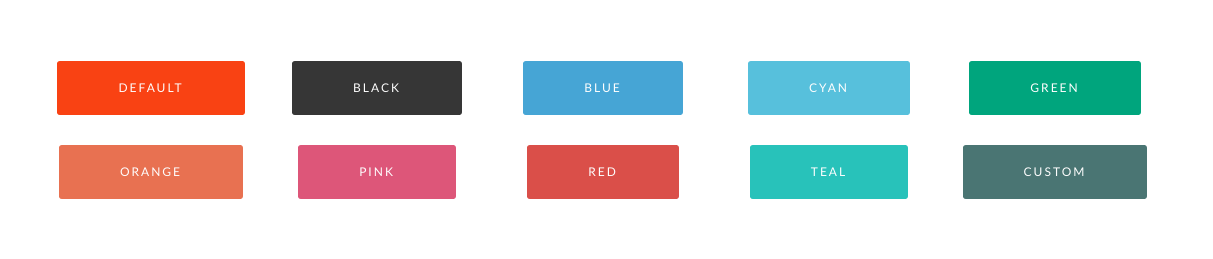
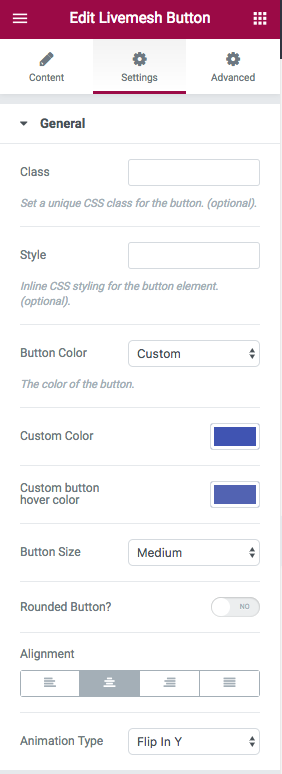
The plugin lets you create buttons of multiple colors that you would use in your site. The supported colors are Orange, Blue, Teal, Cyan, Green, Pink, Black, Red, Transparent and Semi Transparent (for dark backgrounds). You can choose a custom color and custom hover color too for the button to create a button of your chosen color.
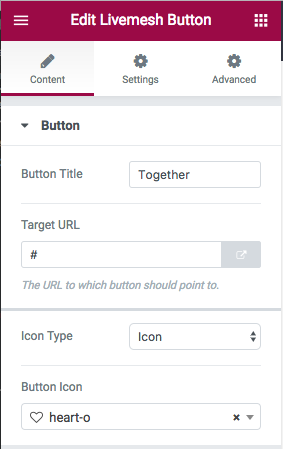
Button Element Edit Window

Button Element Edit Window

You may choose to create a button of Default color which is the color derived from the Theme Color set in the plugin options.

Additional options provided are button size, rounded and alignment – center, right, left and None.

You can choose to display an icon along with the button text. The icon can be a icon font or an image.

The element options are mostly self-explanatory and you can view a live preview of the buttons here.


Icon List Back to top

Icon Lists Element

The icon list element is extremely useful for creating a list of icons with optional links to sites or pages that the icons represent. Examples include social media profiles, icon lists representing payment options or download platforms or a quick summary of services.

Each of the icons part of a list have a title, optional target URL and the icon itself can be a font icon or an custom image. The title for the icon is displayed as a tooltip on mouse hover.
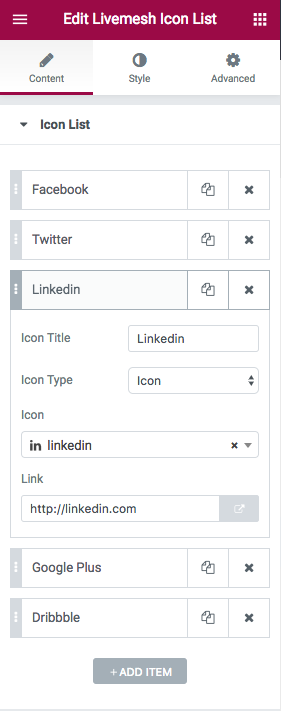
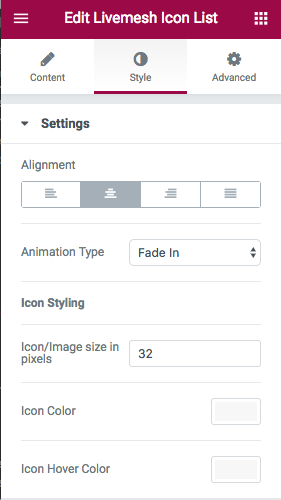
Icon Lists Element Edit Window

Icon Lists Element Edit Window

Following options are available –

  • Icon/Image size in pixels – Custom size of the icons displayed.
  • Icon color – If the icons chosen are font icons, you may specify a custom color for the icons.
  • Icon hover color – The color of the font icons on mouse hover.
  • Open the links in new window – If a target URL is specified for a link, whether the links should open in a new window.
  • Alignment – The icon list can be chosen to align at the center, left, right of it’s position in a page.

Tabs and Accordions – Pro! Back to top

Tabs Elements

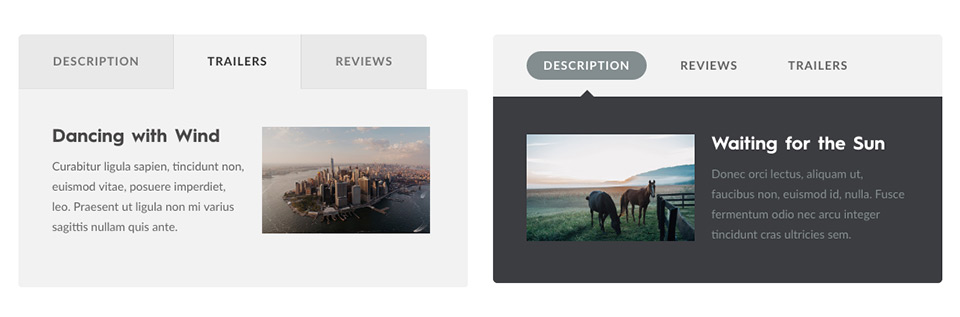
A large of finely designed styles are supported by tabs function of the plugin. Tabs can be of two types – vertical and regular horizontal style tabs.
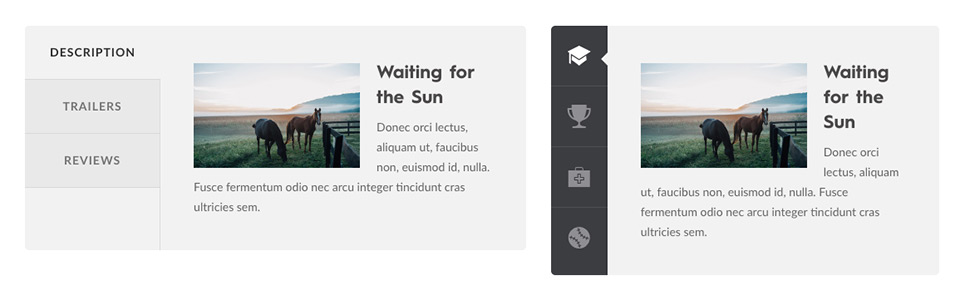
Tabs Elements

There are a total of 10 tab styles to choose from. There is simply no another plugin or theme that supports so many elegant styles for tabs.
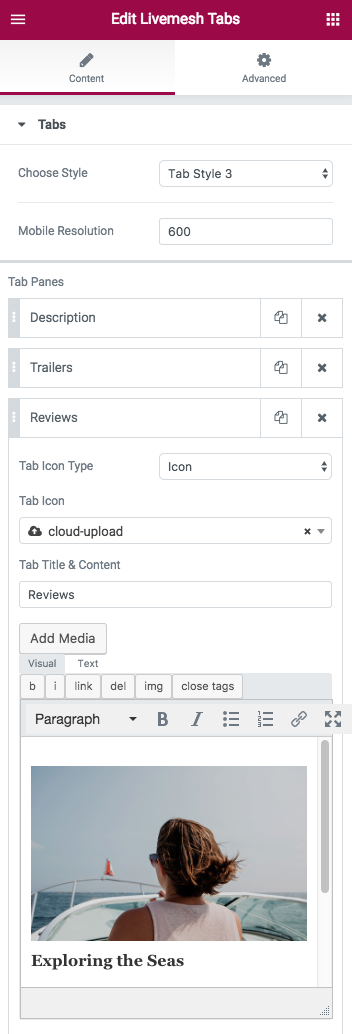
Tabs Element Edit Window

Tabs required two attributes – a tab title and tab content. For styles that support icons, choice of displaying a font icon or an icon image along with the tab title is supported.

Mobile Resolution – Indicate the device resolution in pixels for displaying the tab in responsive mobile mode. The tabs are designed to work well in all device resolutions without sacrificing usability.

Accordions
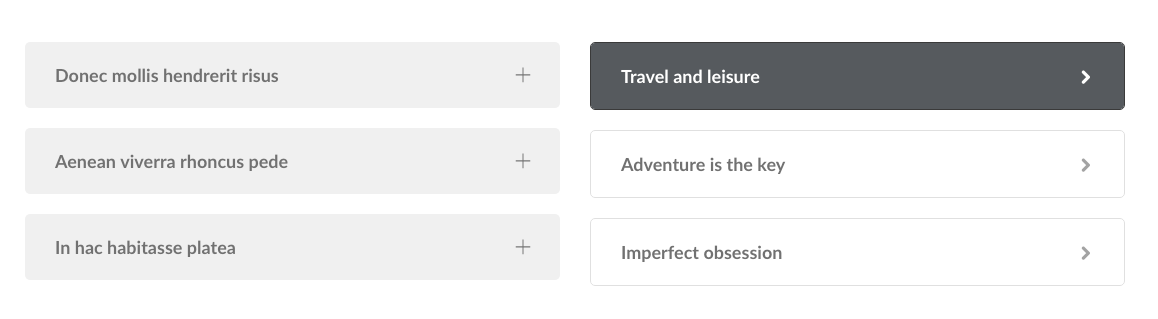
Accordion Element

Accordions support panels that are collapsed by default. The panels can be opened by clicking on panel title bar.
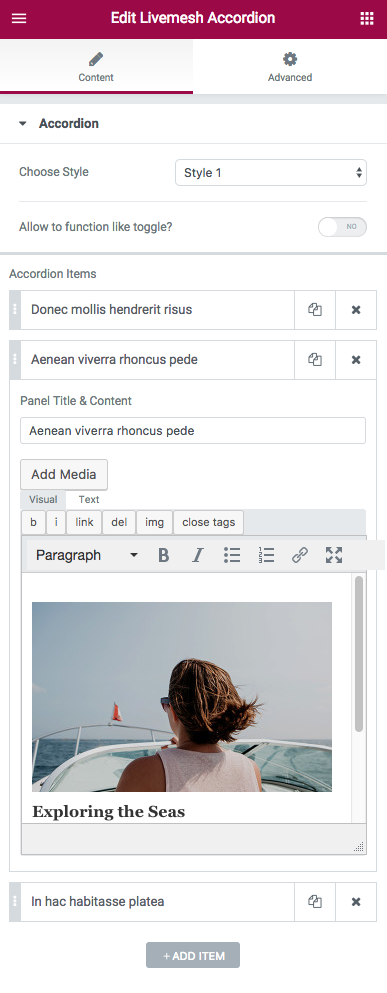
Accordion Element Edit Window

Each of the panels part of an accordion require the user to input a tab title and tab content.

Option to allow multiple panels to be open is provided.
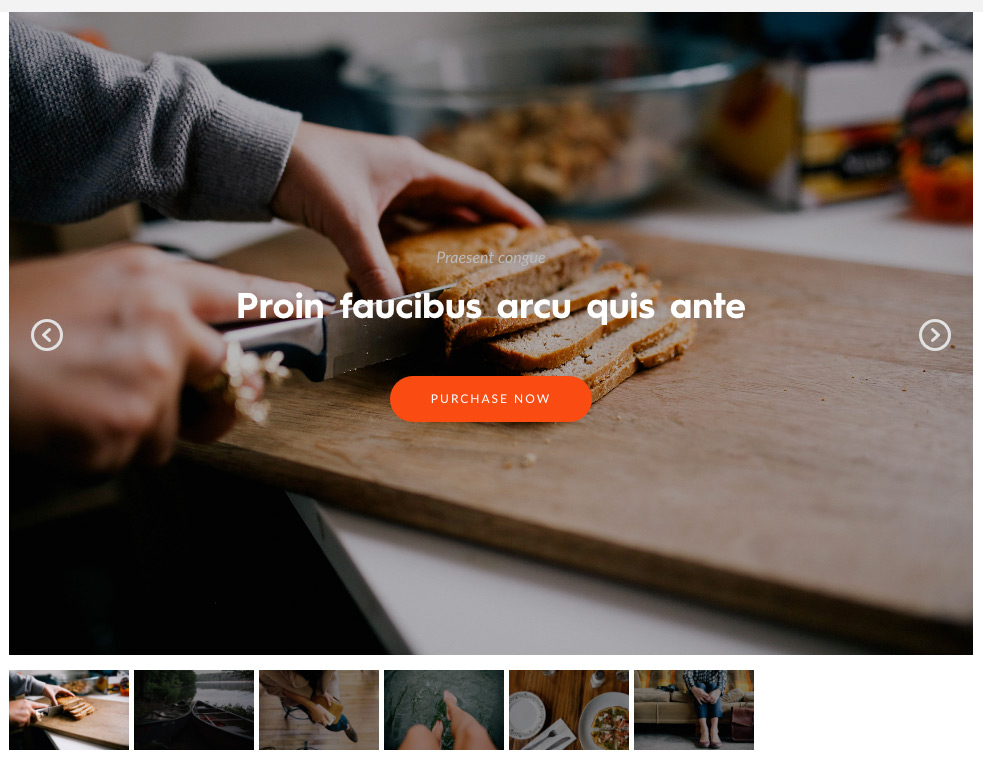

Image Slider – Pro! Back to top

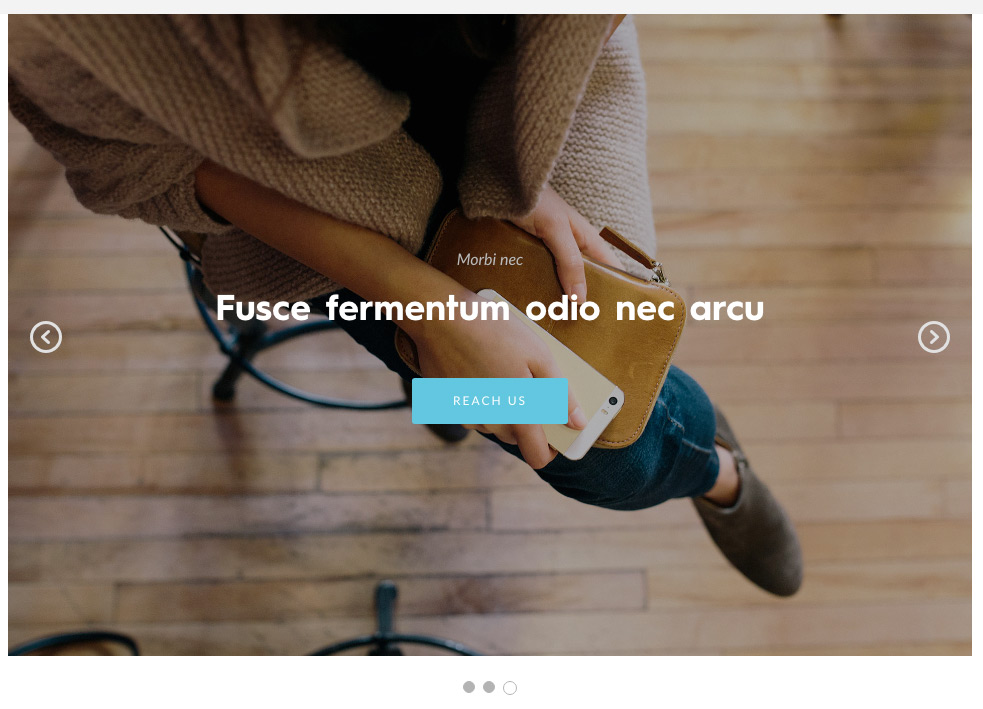
Image Slider Element

The image slider lets you create a responsive slider of images with a multiple options to customize the function and presentation of the slider. The slider can be used anywhere on a page and can also function as the main slider of the page displayed at the top of the page. The slider supports multitude of options but for most users, the default options provided should suffice.
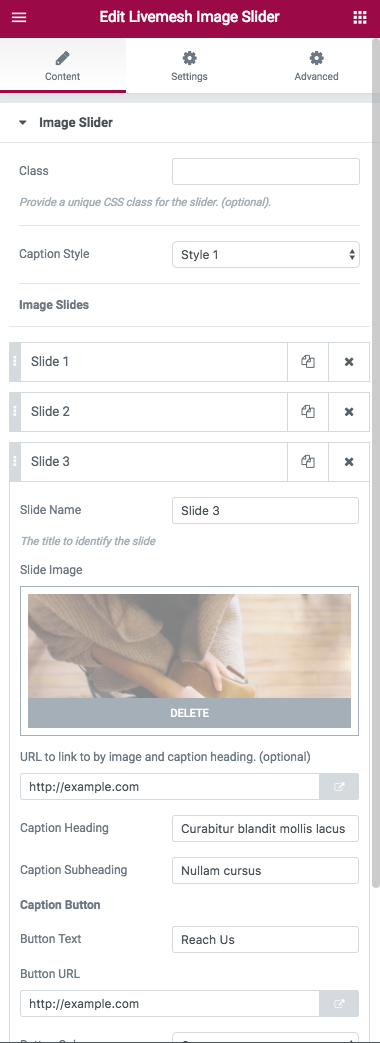
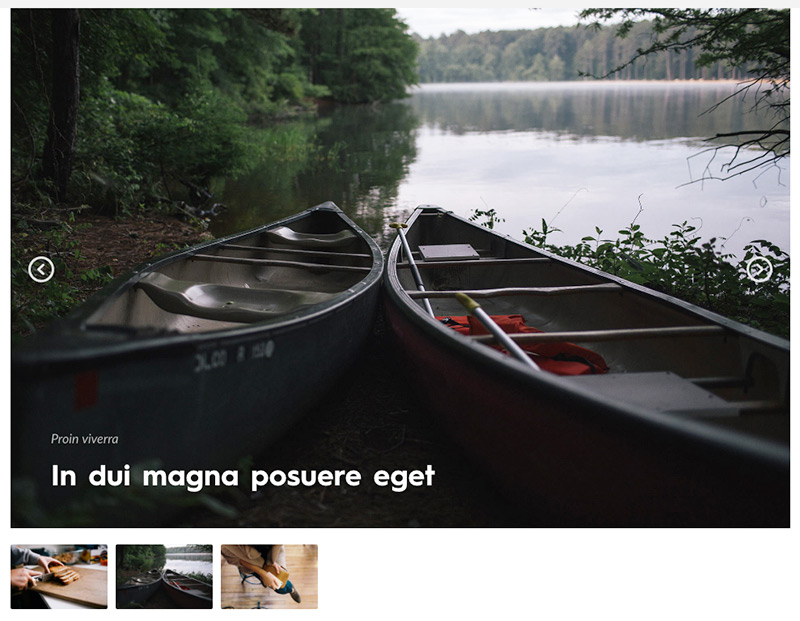
Image Slider Element Edit Window

  • Class – Set a unique CSS class for the slider. (optional). This lets you customize the slider content, specially the slider caption content via Custom CSS.
  • Slider Type – The slider provides you with the choice of four popular slider libraries – Flex Slider, Nivo Slider, Slick Slider and Responsive Slider.
  • Flex Slider – Perhaps the most popular of all and actively maintained by the open source community. Provides features like touch navigation, thumbnail navigation and many options to customize the slider.

    Image Flex Slider Element

  • Nivo Slider – Has been a very popular slider for many years now and loved by many for number of beautiful transition effects that is supports.

    Nivo Image Slider Element

  • Slick Slider – The most popular open source library for building carousels. Responsive controls like touch swipe controls, desktop mouse dragging makes it a compeling choice.
  • Responsive Slider – Simplest and most lightweight of all sliders (just 1 KB in size minified and gzipped). If you need a slider that uses minimal resources, this option should be worth trying out.

    Responsive Image Slider Element

  • Choose Caption Style – There are two styles of captions – one center aligned and the other left aligned. While center aligned caption is more suited to situation where the slider image is functioning more like a background for the caption that is a call to action or a message to the visitor, the style 2 is useful when images speak for themselves and captions describe the images.

Each slide for the slider allow for following options –

  • Slide Image – The image for the slide itself.
  • URL to link to by image and caption heading. (optional) – Specify the URL to which the slide image and caption heading should link to.

Slider Caption Details

  • Caption Heading – The heading title for the caption
  • Caption Sub-heading(Optional) – Subtitle for the caption.
  • Button text – The text for the button displayed below the caption.
  • Button URL – URL for the button.
  • Open URL in a new window – Specify the button click opens the link in a new browser window.
  • Button Color – The color of the button. The supported colors are Orange, Blue, Teal, Cyan, Green, Pink, Black, Red, Transparent and Semi Transparent.
  • Button Size – Can be large, medium or small.
  • Rounded button? – Make the button display with rounded edges.

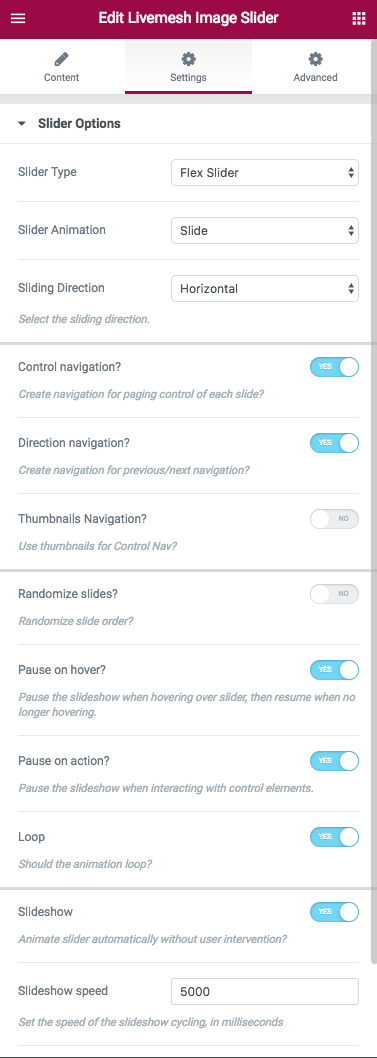
Image Slider Settings

Slider Settings – The element has a number of options available for customizing the slider experience –
  • Animation – Can be Slide or Fade. Applies when the slider type chosen is Flex Slider or the Slick slider. Nivo supports a number of custom transitions while Responsive slider is fade only.
  • Sliding Direction – Can be vertical or horizontal. Supported by Flex and Slick sliders.
  • Control navigation – Create navigation for paging control of each slide.
  • Direction navigation – Create navigation for previous/next navigation.
  • Thumbnails Navigation – Use slider image thumbnails for slider navigation. Supported by Flex and Nivo sliders.
  • Randomize slides – Display slides in random order.
  • Pause on hover – Pause the slideshow when hovering over slider, then resume when no longer hovering.
  • Pause on action – Pause the slideshow when interacting with control elements. Supported by Flex Slider only.
  • Loop – Should the animation loop?
  • Slideshow or Autoplay – Animate slider automatically without user intervention.
  • Slideshow speed (default – 5000) Set the speed of the slideshow cycling, in milliseconds when the Slideshow option is checked.
  • Animation speed – Set the speed of animations like fade or slide, in milliseconds.

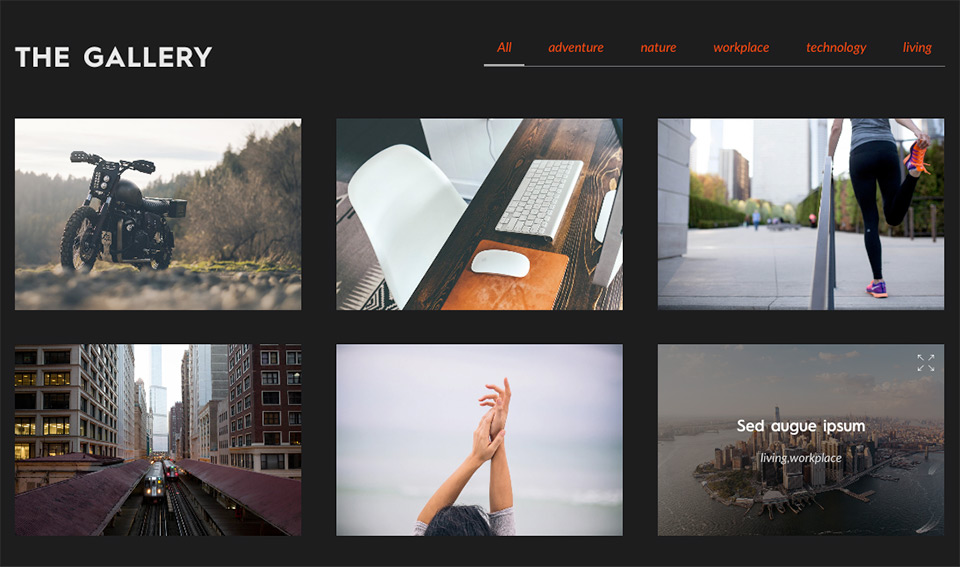
Image Gallery Element

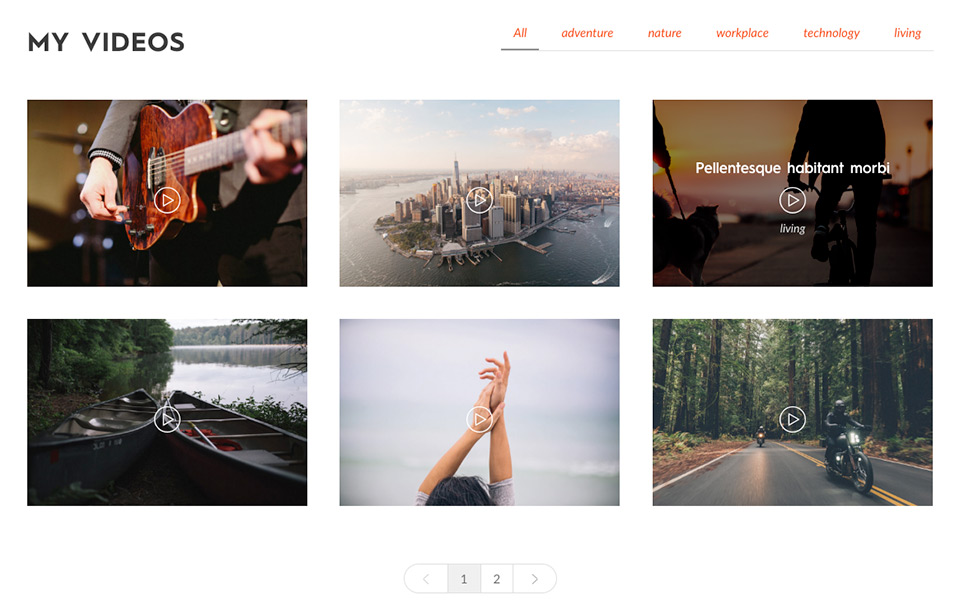
This powerful element lets you create a gallery of images or videos displayed in a multi-column grid. An instance of this element can capture a portfolio of work like that of a photographer or graphic designer/artist. Recent versions of the plugin added a nifty 'Bulk Upload' option to this addon to help choose multiple images and create image galleries instantly.
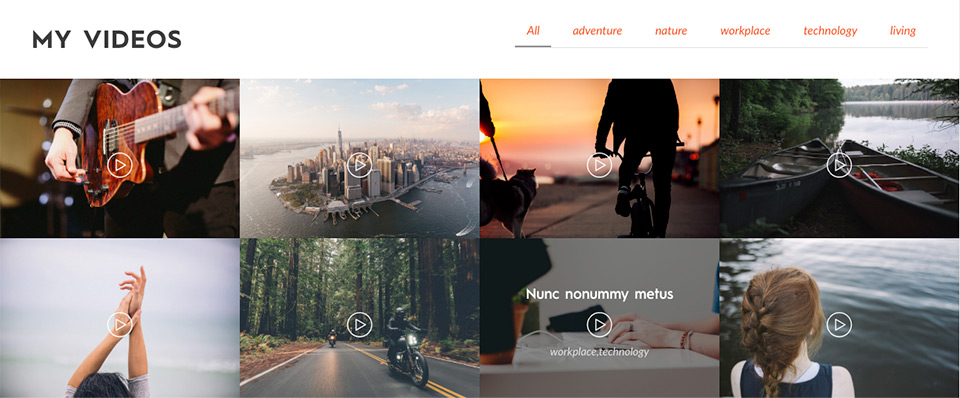
Video Gallery Element

It can be used to create a gallery of videos uploaded to YouTube/Vimeo – useful for video bloggers, video tutorial sites, video marketers, small businesses or websites with a major presence on YouTube/Vimeo. The videos can be played with a single click of the play button on the gallery item as seen in this demo page.

Image Gallery Element Edit Window

The configuration for creating a video gallery is similar to that of image gallery; a video URL would be required along with image that acts as a placeholder.

Video Gallery Element Edit Window

Each of the gallery items capture following information –

  • Item Type – Can be a Image or YouTube Video or Vimeo Video.
  • Item Label – The label or name for the gallery item. This label is displayed on mouse hover over the image.
  • Gallery Image – The image for the gallery item. If item type chosen is YouTube or Vimeo video, the image will be used as a placeholder image for video.
  • Item Tag(s) – One or more comma separated tags for the gallery item. Useful when items are made filterable.
  • Page URL – The URL of the page to which the image gallery item points to (optional).
  • Video URL – If the item represents a Vimeo or YouTube video, provide the URL to the video. Any gallery item representing a video is given a play button. Upon clicking the play button, the Vimeo/YouTube video opens up in a lightbox window for playing.

Image Gallery Element Edit Window

Image Gallery Element Edit Window

The Gallery element comes with following settings –
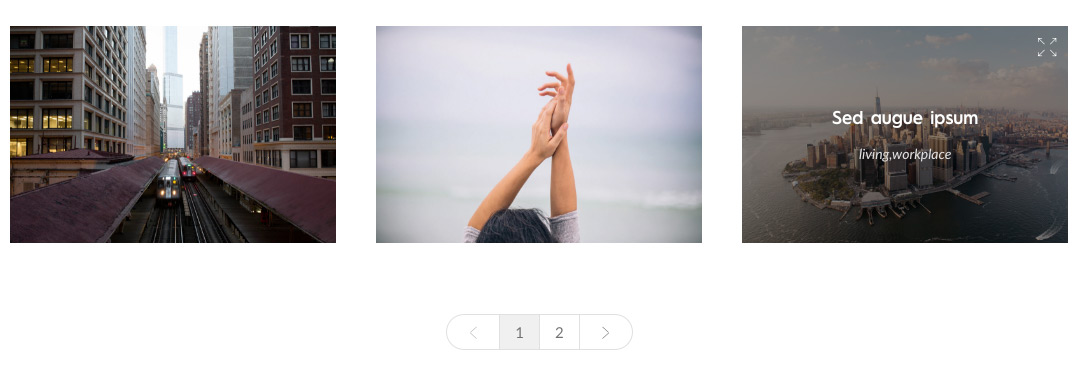
  • Filterable – If the videos or images are tagged, the items can be made filterable on the tags specified by the user just like a Portfolio Grid.
  • Layout for the grid – Comes with Masonry and FitRows option. You can create stunning masonry style grid by choosing a wide width option for the image in the Insert Media window or in the Edit Gallery window when you choose 'Bulk Upload' option for the images. The flexibility in height of the image for masonry layout is achieved automatically by uploading an image of custom height.
  • Image Gallery Element Pagination

    Image Gallery Element Load More Option

  • Pagination – Choose pagination type or choose None if no pagination is desired. Make sure you enter the items per page value in the option ‘Number of items to be displayed per page and on each load more invocation’ field below to control number of items to display per page.

    Video Gallery Element Pagination

  • Columns per row – Specify the number of images/videos to display per row of the grid.
  • Enable Lightbox Gallery – The lightbox for the image opens up a bigger image in a popup window. You can navigate among the gallery items here.
  • Gutter – The spacing between columns that contain image/video in the grid. You can control the spacing/gutter at various resolutions like those of tablet/smartphone.

Image Carousel Element

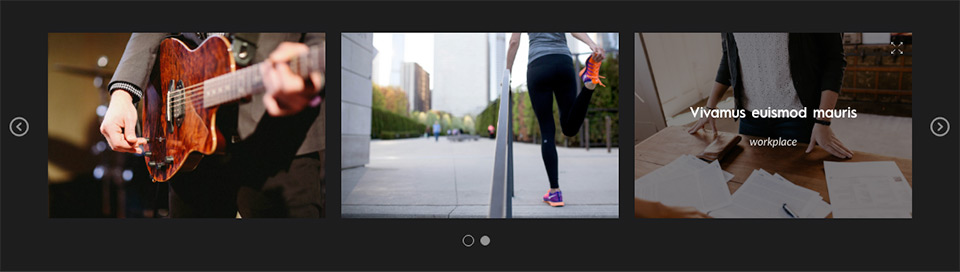
You can create a carousel of images/videos (or a combination of both) for showcasing your work or video content uploaded to Vimeo/YouTube. An instance of this element can capture a portfolio of work like that of a photographer or graphic designer/artist.
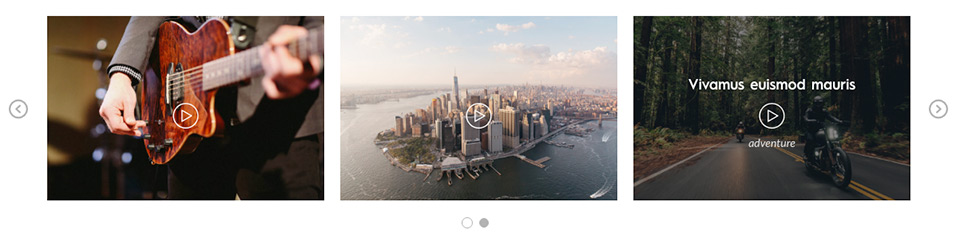
Video Carousel Element

It can be used to create a carousel of videos uploaded to YouTube/Vimeo – useful for video bloggers, video tutorial sites, video marketers, small businesses or websites with a major presence on YouTube/Vimeo. The videos can be played with a single click of the play button on the gallery item as seen in this demo page.
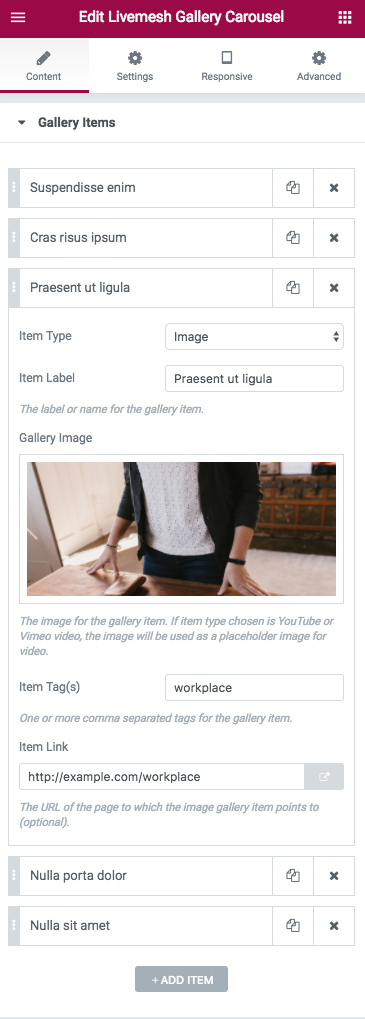
Image Carousel Element Edit Window

The option for creation of video carousel is similar to that of image carousel - requires input of URL for the Vimeo/YouTube video along with placeholder image.
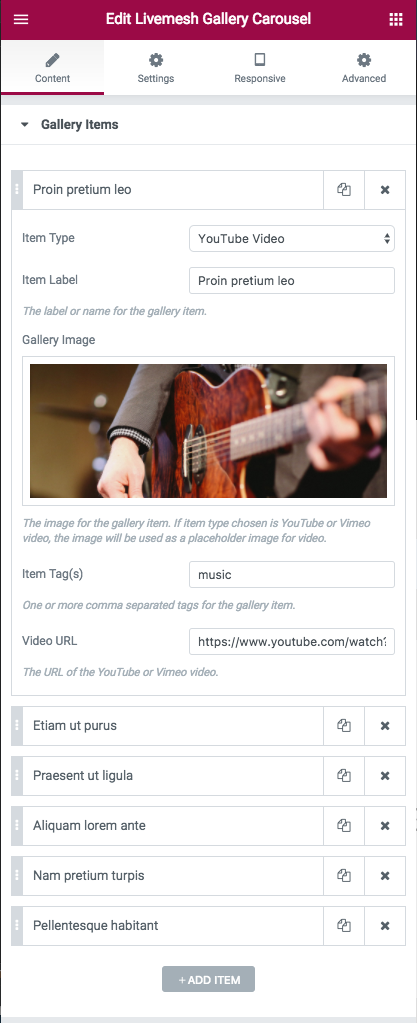
Video Carousel Element Edit Window

Each of the gallery items in the carousel capture following information –
  1. Item Type – Can be a Image or YouTube Video or Vimeo Video.
  2. Item Label – The label or name for the gallery item. This label is displayed on mouse hover over the image.
  3. Gallery Image – The image for the gallery item. If item type chosen is YouTube or Vimeo video, the image will be used as a placeholder image for video.
  4. Item Tag(s) – One or more comma separated tags for the gallery item. Useful when items are made filterable.
  5. Page URL – The URL of the page to which the image gallery item points to (optional).
  6. Video URL – If the item represents a Vimeo or YouTube video, provide the URL to the video. Any gallery item representing a video is given a play button. Upon clicking the play button, the Vimeo/YouTube video opens up in a lightbox window for playing.

Image/Video Carousel Settings

Image/Video Carousel Settings

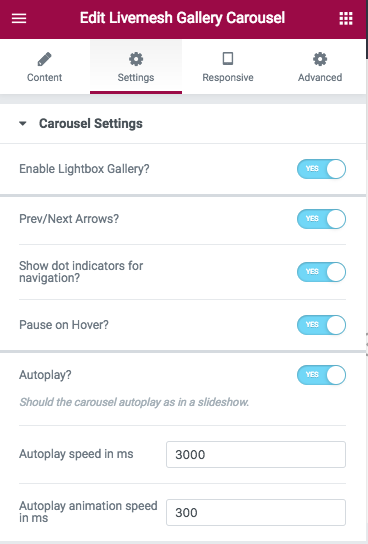
The section ‘Carousel Settings’ has options that control how the carousel is displayed. Options include autoplay speed, gutter value between post items in various resolutions, navigation controls for carousel, number of columns or items to display before making the user to scroll for additional items etc.
  • Enable Lightbox Gallery – Enable lightbox gallery for images. The lightbox for the image opens up a bigger image in a popup window. You can navigate among the gallery items here.
  • Prev/Next Arrows – Display navigation for the carousel.
  • Show dot indicators for navigation – Display control navigation or pagination controls for the carousel.
  • Autoplay – Display carousel as a slideshow.
  • Autoplay speed in ms – The time between display of each page of images when Autoplay option is enabled.
  • Autoplay animation speed in ms – The time taken for animation that moves the carousel to next or previous page of items.
  • Pause on mouse hover – Pause the slideshow if the user has mouse hovered over the carousel contents.
  • Columns per row – Number of gallery items visible at any given point of time without scrolling. You can control the number of items visible at various resolutions like those of tablet/smartphone by providing appropriate values in the 'Responsive' tab.
  • Columns to scroll – With each scroll action – using the prev/next arrows or the dotted navigation, specify the number of items to scroll for each invocation of the navigation controls. You can control the number of items to scroll at various resolutions like those of tablet/smartphone by providing appropriate values in the 'Responsive' tab.
  • Gutter – The spacing in pixels between images/videos in the carousel. You can control the spacing/gutter at various resolutions like those of tablet/smartphone by providing appropriate values in the 'Responsive' tab.

FAQ- Pro! Back to top

FAQ Element

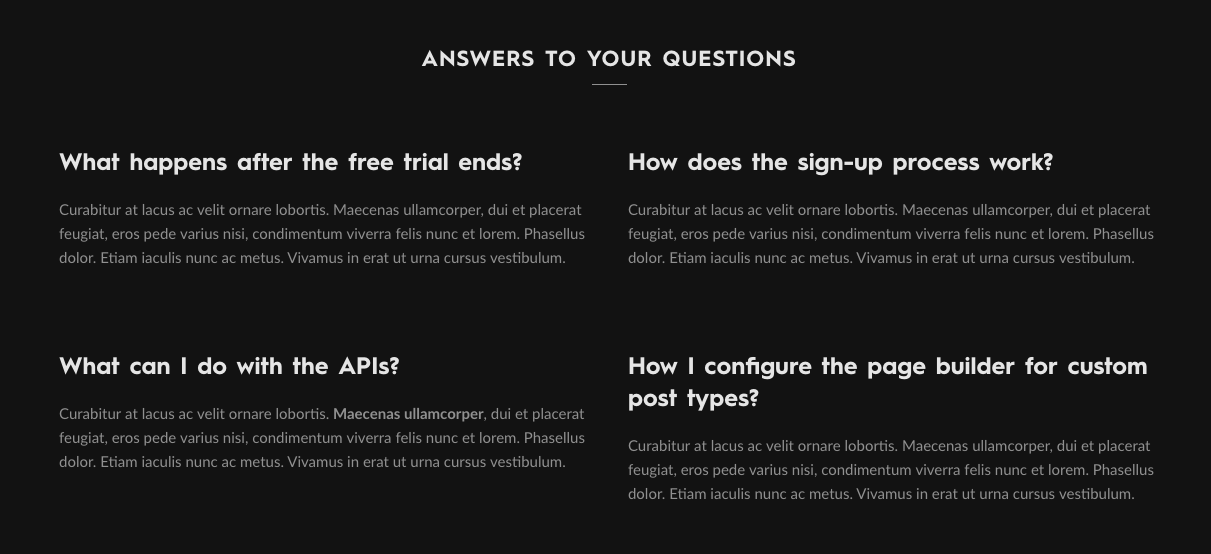
The FAQ makes the task of creating a FAQ for a site effortless. Just enter FAQ items and choose the number of items to show per row of content and you are done.
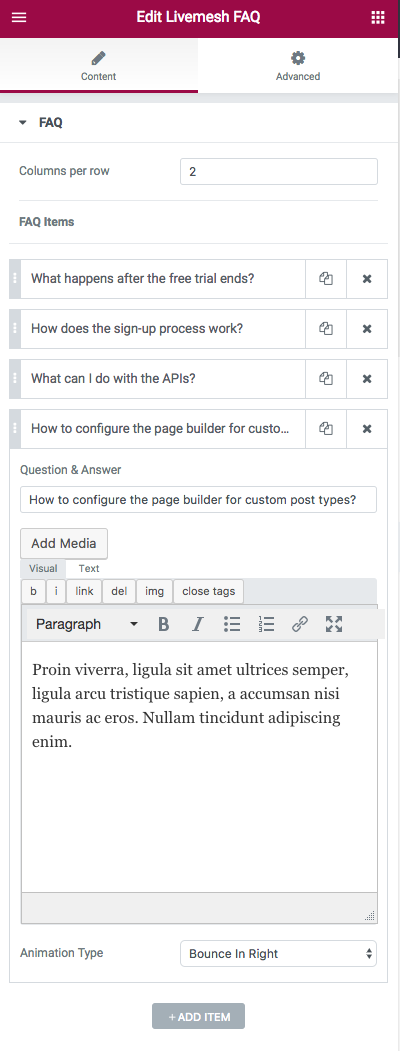
FAQ Element Edit Window

Each FAQ item requires two input – question and an answer for the question part of the FAQ.

Do note that the Accordion function of the plugin too can be used to create a nicely formed FAQ for a site.

Features- Pro! Back to top

Features Element

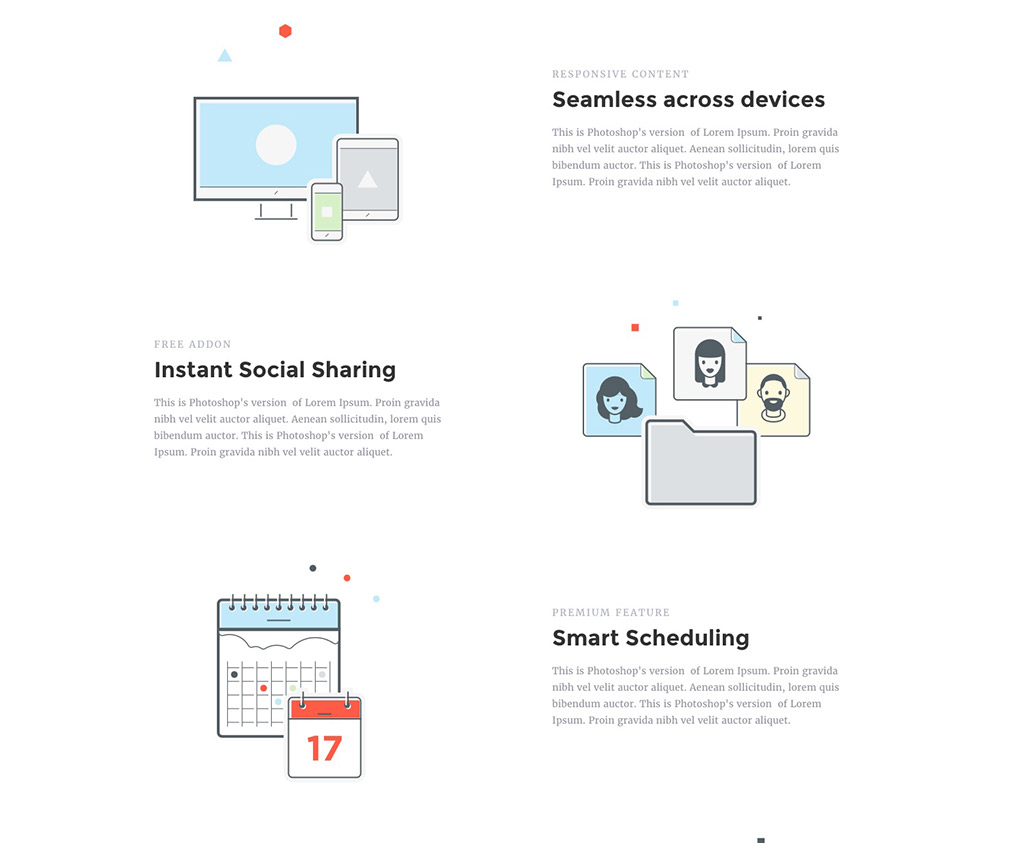
Features element lets you showcase a number of things. Below are some examples although possibilities are many -
  • Features of a product like a mobile app or other types of software.
  • Showcase features provided by an online service or a tool.
  • List a set of services an agency or organization may provide.
  • Describe any type of physical or digital goods you are trying to sell.

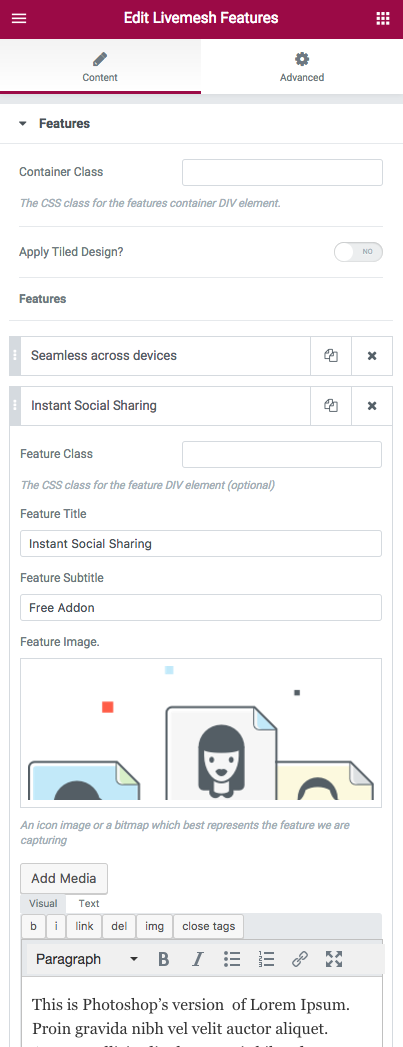
Features Element Edit Window

Any feature part of the features element requires you input an icon image or a screeshot which represents the feature you are describing. Aside from the icon or screenshot, you will need to provide details like heading title, subtitle and description of the feature.

The features element has an option to apply popular tile-based design to the features list (screenshot below). The examples of this is seen in the demo site showcasing the features widget.
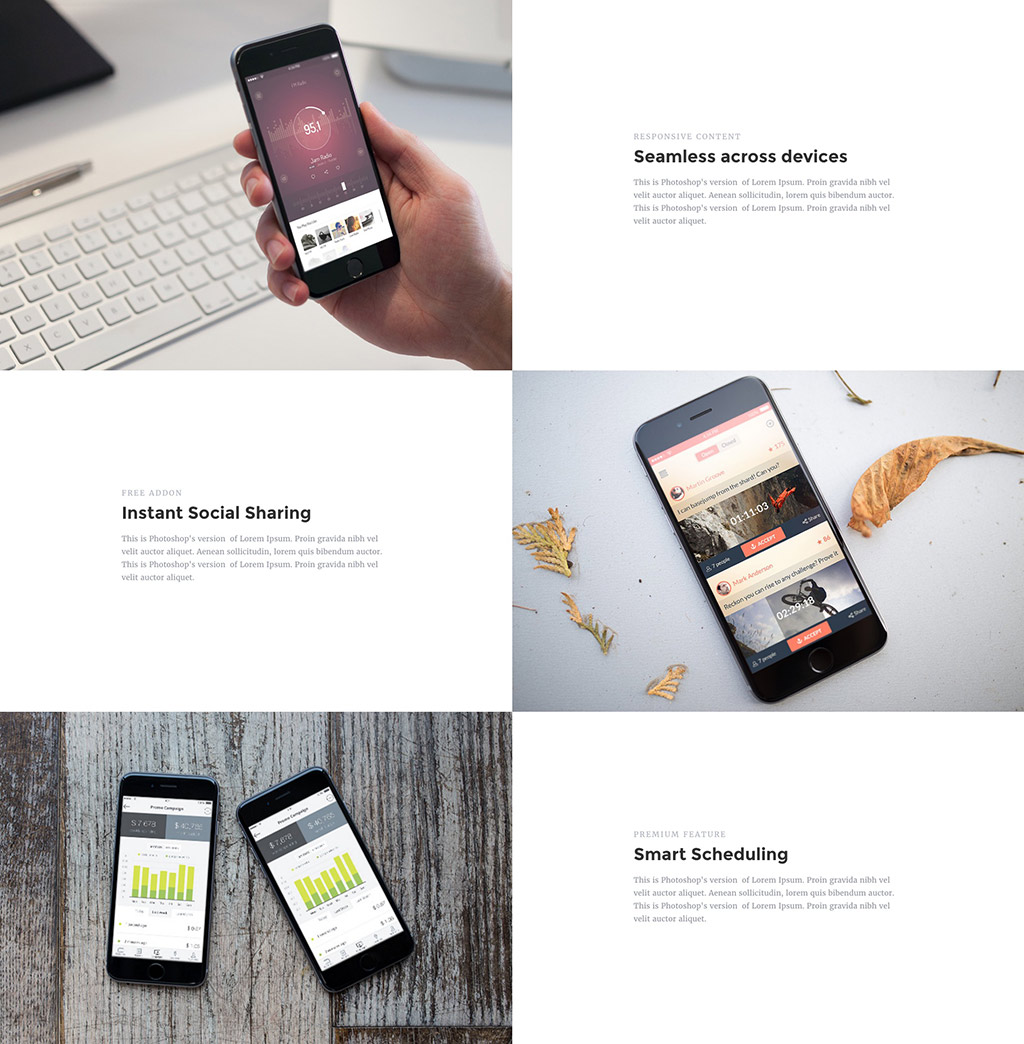
Tiled Features Element


Plugin Support Back to top

If you have queries or issues to report related to the plugin, please submit the same through our website contact form. This will create a support ticket in our support portal.

Required/Recommended Plugins

Below is a list of required/recommended plugins to install that will help you get the most out of the plugin. While Elementor plugin is required, the rest of the plugins are optional but we recommend you install these plugins if you plan to replicate the plugin demo site by importing the sample data.


Elementor is one of the most popular frontend page builder tool for WordPress powering over 100,000+ sites. You can build any layout you can imagine with intuitive drag and drop builder with little or no programming knowledge.

All of the elements part of Livemesh Addons for Elementor plugin were built using the API provided by the Elementor plugin and hence this plugin must be installed and activated on the site prior to using our plugin.

All of the pages of our demo site for the plugin have been built using this page builder. You should install and activate this plugin prior to replicating the plugin demo site by importing the sample data provided.


Portfolio Post Type is a free plugin that registers a custom post type for portfolio items. It also registers separate portfolio taxonomies for tags and categories. The Portfolio grid instances showcased on our demo site was built using custom post types registered by Portfolio Post Type plugin.

Does it work with the theme that I am using?

Our tests indicate that the elements work well with most themes that are well coded. You may need some minor custom CSS with themes that hijack the styling for heading tags by using !important keyword.

The demo site is best recreated with a theme that supports a full width page template without sidebars. The elements can still be used in the pages of default template.


How to enable the dark version for any element?

In Elementor page builder, edit the section wrapper for the element representing a row of elements. Navigate to the 'Advanced' tab of the 'Edit Section' sidebar window. Scroll down to the bottom of this tab to the 'Advanced' section and input class ‘lae-dark-bg’ in the 'CSS Classes' field to activate the dark version of an element.


My portfolio grid does not show any items.

Pls install and activate the Portfolio Post Type plugin to enable custom post type Portfolio.


Change Log for the Premium Version

2.6.2

  • Updated - Readme.txt and documentation.

2.6.1

  • Fixed - Fancybox lightbox combines images from multiple grids/galleries when displaying images/videos in the lightbox.
  • Fixed - The direct link to lightbox image does not work.

2.6

  • Updated - Freemius library with a security fix. Recommended to update immediately.
  • Added - Twitter grid addon for showcasing tweets on your website.
  • Added - 3 styles for display of tweets in a Twitter grid.
  • Added - Extensive customization options for Twitter grid addon.
  • Added - Load more feature for Twitter grid addon.
  • Added - Enhanced blocks framework to accommodate social media grids.
  • Fixed - Posts Block Style 4 with single column results in invalid HTML.
  • Fixed - Some themes can raise JS error due to jQuery $ being unavailable
  • Updated - Fancybox lightbox library and Flexslider library with RTL support

2.5.2

  • Fixed - Carousels utilizing slick JS causing conflict with Elementor scripts.

2.5.1

  • Added - Support for HTML tags in gallery item description.
  • Fixed - The gallery item description not displaying in fancybox lightbox.

2.5

  • Updated - Moved the video and image gallery addon to blocks framework with a host of new features. The popular gallery module is now powered by the same robust framework that powers our posts grid and posts block modules.
  • Added - 3 skins for video and image gallery module with better support for titles and descriptions.
  • Added - 7 new header styles for video and image gallery addon derived from blocks framework.
  • Added - Support for AJAX based filtering instead of JS filtering for video/image gallery addon when pagination/load more function is chosen for the gallery. No more empty filters since the gallery items are fetched from the server when filters are invoked. When number of items for a filter exceeds the 'items per page' specified, the filters themselves are paginated or load more function is invoked depending on user choice. The addon reverts to quicker in memory JS filters when no pagination or load more is involved.
  • Added - Support for tags and filters when bulk upload option for images is chosen.
  • Added - Collapsible and responsive filters for the gallery module.
  • Added - Better performance with in memory cache support for pagination of image/video gallery addon.
  • Fixed - The video gallery error when elementor lightbox option is chosen.
  • Removed module based templates; use filter hooks instead to achieve the same result.

2.3.5

  • Updated - Freemius SDK to 2.1.3 that addresses plugin update issues on a multisite network.

2.3.4

  • Added - Read More link/button options for posts blocks.
  • Added - Styling options for read more links and buttons in posts block module.
  • Added - Styling options for load more button in posts grid and posts block modules.
  • Added - Responsive pagination controls for gallery.
  • Added - Block style 8 in Posts Block now much more responsive.

2.3.3

  • Fixed - Social media icons not showing up for team profiles.
  • Added - Filters for settings object employed for rendering the addons.

2.3.2

  • Fixed - Gallery pagination would break when number of items crosses 140.
  • Added - Pagination with dotted navigation for galleries when number of pages exceeds 5.

2.3.1

  • Fixed - Incompatibility with some themes which load waypoints JS script.

2.3

  • Added - Extensive support for filters and templates to enable users to customize the output generated by the addons. You can now create a template file in elementor-addons folder in your child theme to customize the addons html or use filters to customize output generated by the addons.
  • Updated - Documentation providing information on how to use templates and filters to customize the plugin addons.
  • Fixed - The fancybox lightbox would not display share, thumbnail, slideshow options for image/video gallery, posts grid and posts blocks.
  • Fixed - Tooltips are displaying for icon list items.

2.2

  • Fixed - Incompatibility with certain themes due to different versions of waypoints scripts being used.
  • Fixed - The tabs would leave a large space after the footer.

2.1

  • Fixed - Certain widgets/addons like pricing, carousel, gallery and services raised errors when 'Add Item' button was pressed to add items. Error seen with latest version of Elementor.
  • Fixed - Leaving tags empty in the gallery lead to addition of an empty filter in the filter list
  • Fixed - Deprecated warning on checkbox control.

2.0.1

  • Fixed - Bug fixes related to Freemius integration.

2.0

  • Added – Freemius integration for easy upgrade, quick support/feedback and opt-in usage tracking with GDPR compliance.

1.9.2

  • Fixed - The URLs specified for the gallery items not preserved across pagination or load more calls.
  • Fixed – Translation issues due to presence of additional language domains.
  • Fixed - Some sites had issues rendering tabs with disappearing tab labels and extra spaces at the bottom.

1.9.1

  • Added – Compatibility with Elementor and Elementor PRO 2.
  • Added - Dynamic field connections for most widgets supported by Elementor 2.
  • Updated - Removed Livemesh prefix from all elements. For example, Livemesh Services is now named Services, Livemesh Tabs is now Tabs, Livemesh Grid is now Posts Grid etc.
  • Added - Ability to specify client name in HTML for additional formatting.

1.9.0

  • Added – New simpler grid system for all elements that use grid.
  • Added – Seamless control of number of columns at all device resolutions for all those elements that involve grid – posts/portfolio grid, posts block, image/video gallery, clients, services, testimonials, team, charts, pricing table, faq etc.
  • Added - Option to preserve shortcodes and HTML tags in excerpt. Option is disabled by default.

1.8.8

  • Fixed – Pagination and Load More for gallery would break when special characters are present in title or description.
  • Fixed - Duplicate tags filters generated in gallery when tags have spaces around them.

1.8.7

  • Fixed - Warning for image slider widget in Elementor 2.0
  • Fixed - Grid layout for video gallery can break at times when user expands an inline video full screen
  • Tweak - Increased the taxonomy terms limit to 500 to help taxonomy field display all terms in installations where there are large number of terms

1.8.6

  • Fixed - Broken wide image support for masonry grid in media gallery

1.8.5

  • Added - Support for multiple url formats for YouTube and Vimeo videos in video gallery
  • Added - Support for inline responsive videos of YouTube, Vimeo and self-hosted MP4/WebM video formats
  • Added - If no custom thumbnail is set, the thumbnails for YouTube/Vimeo videos automatically set from the service provider
  • Fixed - Next/Prev navigation for gallery not working

1.8.3

  • Updated - Waypoints script with new API for handling events on scroll
  • Fixed - Some themes can break animations and report script errors for elements like piecharts, odometers, progress bars etc.

1.8.2

  • Improved – License activation page with less confusing interface.
  • Added - The license code entered is now masked upon activation.

1.8.1

  • Added – Ability to display description for the image/video element in the gallery and gallery carousel lightbox window.
  • Added – The lightbox for posts grid and posts block now displays post summary and a link to the post in the lightbox.
  • Added – Option to disable display of post summary/excerpt in the lightbox window of posts block or posts grid.

1.8.0

  • Added – Fancybox lightbox integration for grid, posts block, image gallery, video gallery and gallery carousel modules.
  • Added – Advanced features like touch/swipe controls, pinch out/in, double tap, keyboard navigation, full screen, thumbnails, social media sharing, hardware accelerated animations, direct linking now supported with lightbox.
  • Added – HTML5 video support in video gallery and video carousel modules. Support for MP4 and WebM formats.

1.7.6

  • Fixed – Posts Grid columns can break in certain resolutions in FireFox.
  • Fixed - Posts Grid excerpt would not display shortcodes or HTML content
  • Fixed - Livemesh Gallery styling controls not taking effect for thumbnail hover and titles

1.7.5

  • Added - Support for creating stunning masonry gallery layouts using flexible widths and heights for images.
  • Added - Ability to specify wide width for images in masonry layout of gallery.
  • Added - Options to enable/disable display of image/video titles and image/video tags in gallery and gallery carousel addons.
  • Fixed - Next Previous buttons of carousels would not show up in certain installations due to conflicts with base slick carousel styles

1.7.3

  • Fixed - Undefined index warning on the gallery addon.
  • Fixed - Pagination/load more on the gallery addon.

1.7.2

  • Fixed - Lightbox conflict with Elementor for gallery, gallery carousel, posts/portfolio grid and posts blocks modules.
  • Added - Option to choose either Elementor or Magnific Popup as lightbox lib for gallery and gallery carousel addons.
  • Added - Made Elementor lightbox lib as default for gallery and gallery carousel addons with slideshow function.
  • Fixed - The categories/taxonomy terms of the posts/portfolio grid and posts blocks would display a comma character on the post image when multiple terms/categories were present.

1.7.1

  • Added - Advanced tab and accordion functions that help directly link to Tabs and Accordion panels from external pages. On page load, the corresponding tab/panel opens upon auto-scrolling to the tab or accordion panel.
  • Added - Smooth scroll to tabs and accordion panels from internal links within a page.
  • Added - Open tab or accordion panels by clicking the internal links within a page.

1.7

  • Upgrade – Simpler grid system based on NEAT 2.1 version
  • Updated - The CSS is now optimized for vendor prefixes with reduced properties and file size.
  • Added - Scroll to the top of the posts block to display new posts during paged navigation (when new posts are not visible).

1.6

  • Added – Image size option for all major addons including grid, gallery and carousels.
  • Added – Ability to crop images and specify custom image sizes for all major addons including grid, gallery and carousels.
  • Added - Bulk upload option for image gallery. The title of the image attachments is displayed on hover.
  • Added - The lightbox now opens on clicking anywhere on the image if no destination URL is specified for gallery item
  • Fixed – The gallery image was not clickable to the link specified
  • Fixed – The gallery filters would not center when a heading was not specified.
  • Fixed – The gallery filters will not display multi-line on devices of lower resolutions like mobile devices.

1.5

  • Added – Moved the Posts Grid widget to new framework based on reusable blocks. Pls note that the class names have changed to keep it consistent with the new framework.
  • Added – 6 different styles for grid items plus 7 header styles too
  • Added – Next Prev pagination options for Posts Grid widget
  • Added – Ability to handle large number of grid pages by providing dotted navigation
  • Added – AJAX Category or taxonomy filtering for Grid widget. No more empty grid on category/taxonomy filtering
  • Added – Read More option for the grid items
  • Added – Open in new window option for links to posts in the grid
  • Added – Two more header styles to posts blocks
  • Fixed – The grid image was not clickable to the post
  • Fixed – The filters would not center when a heading was not specified.
  • Fixed – The grid filters will not display multi-line on devices of lower resolutions like mobile devices.

1.4.1

  • Fixed - Fatal error on installations running below PHP 5.5 versions

1.4

  • Added - Brand new Post Blocks Widget with more than a dozen styles and options to present your posts or custom post types
  • Added - AJAX Pagination, Next Prev and Load More options for Post Blocks widget
  • Added - AJAX Category or taxonomy filtering for Post Blocks widget

1.3

  • Added - Extensive customization options including typography, color and other styling options for all addons/modules
  • Fixed - The lightbox image was smaller than uploaded size
  • Fixed - Service icons would show up even when 'None' option was chosen
  • Fixed - Translations not working with default files provided by plugin

1.2.1

  • Added - Automatic plugin updates and license key activation

1.2

  • Fixed - The portfolio grid addon leaves an empty space on the top when no heading is specified and when no taxonomy filters are specified
  • Fixed - In a few installations, the grid elements may not occupy full width between 769px to 800px device resolutions
  • Fixed - The grid raised an warning when when certain taxonomies are chosen in the grid settings.
  • Fixed - The isotope and magnific popup libraries were not being loaded for image/video gallery addon.
  • Credit - Big thanks to user Axel for finding ALL these bugs that I could not have found myself.

1.1

  • Fixed - Plugin animations mixing up with elementor animations making the addons to disappear on frontend
  • Fixed - Links in a few widgets were showing even when no link URL was specified
  • Fixed - A few addons would wrap around and move outside of the editor container
  • Fixed - Odometers, Piecharts and Bar Charts addons would not show up in the editor preview
  • Fixed - Links in few addons would not take into consider the setting to open URL in new window
  • Fixed - The posts carousel would not show up in mobile devices
  • Fixed - The posts carousel dots navigation was not clickable
  • Fixed - The posts carousel would not expand beyond 960px in width
  • Fixed - Some addons having strange grey background in elementor editor

1.0

  • Initial release.
is_not_paying()): ?>

Need support for the plugin?

The premium version of the plugin entitles you to quick support with replies posted within 24 hours (on week days).

Please submit your support query through our website contact form. This will create a support ticket in our support portal.

Have questions or want to leave feedback?

If you need to leave your feedback or have a query regarding one of our WordPress plugins or themes, feel free to leave us a message through our contact form and we will get back to you promptly.